

Introduction
Hosting a web application on Amazon Web Services (AWS) is straightforward when combining an EC2 virtual machine with the Apache HTTP Server. Apache is one of the world’s most reliable, open-source web servers, powering millions of websites globally.
In this beginner-friendly tutorial, we will walk through launching an AWS EC2 instance, installing the Apache web server, and serving your first webpage over HTTP.
What is Apache HTTP Server?
Apache HTTP Server is an open-source, cross-platform web server software that accepts directory requests from web browsers and serves web pages back via HTTP/HTTPS.
When combined with AWS EC2, Apache provides:
- High Reliability: Exceptional stability for enterprise and personal web applications.
- Modular Architecture: Easy configuration for custom domain routing, SSL certificates, and URL rewrites.
- Seamless Cloud Scalability: Effortless integration with AWS Elastic Load Balancers and Auto Scaling groups.
Prerequisites
Before starting this guide, ensure you have:
- An active AWS Management Console account.
- An SSH client (Terminal for macOS/Linux or Command Prompt/PuTTY for Windows).
- An existing SSH Key Pair (
.pemfile) to access your instance.
Step-by-Step Implementation Guide
Step 1: Launch an Amazon EC2 Instance
First, log in to the AWS Console and launch a new virtual server:
- Open the AWS Management Console and select your preferred deployment region (e.g.,
us-east-1). - Navigate to EC2 -> Click Launch Instance.
- Configure the following server parameters:
- Name:
My-Apache-WebServer - AMI (Amazon Machine Image): Amazon Linux 2023 (or Ubuntu Server 22.04 LTS).
- Instance Type:
t2.micro(Free Tier eligible). - Key Pair: Select your existing key pair or create a new one.
- Name:
- Configure Network Settings:
- Enable Auto-assign Public IP.
- Security Group: Allow SSH (Port 22) from your IP address, and allow HTTP (Port 80) from anywhere (
0.0.0.0/0).
- Storage: Leave default (8 GB – 20 GB
gp3/gp2). - Click Launch Instance.
Step 2: Connect to Your EC2 Instance via SSH
Next, copy your instance’s Public IPv4 address from the EC2 Dashboard and establish an SSH connection:
- For Amazon Linux Instances:
ssh -i "your-key.pem" ec2-user@YOUR-INSTANCE-PUBLIC-IP
- For Ubuntu Instances:
ssh -i "your-key.pem" ec2-user@YOUR-INSTANCE-PUBLIC-IP
Step 3: Install and Enable Apache Web Server
Now, update system packages and install the Apache HTTP server software depending on your OS:
- For Amazon Linux
# Update system packages
sudo dnf update -y

# Install Apache (httpd)
sudo dnf install -y httpd

# Start and enable the service on boot
sudo systemctl start httpd
sudo systemctl enable httpd
- For Ubuntu Linux
# Update package index
sudo apt-get update -y

# Install Apache (apache2)
sudo apt-get install -y apache2

# Start and enable the service on boot
sudo systemctl start apache2
sudo systemctl enable apache2
Step 4: Create Custom HTML Webpage (Optional)
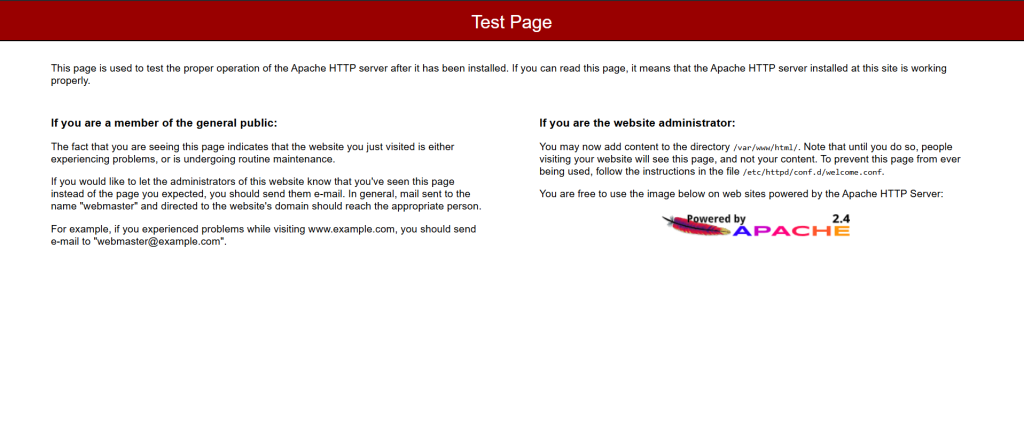
- By default, Apache serves a generic test page. Replace it with custom web content:
# For Amazon Linux or Ubuntu
echo "<h1> Welcome to My Apache Web Server on AWS EC2!</h1>" | sudo tee /var/www/html/index.html
Step 5: Test Public HTTP Access in Browser
Finally, copy your EC2 instance’s Public IP address and test browser accessibility:
- Open your web browser.
- Navigate to your IP address:
http://YOUR-INSTANCE-PUBLIC-IP
- You should immediately see your customized Apache welcome page.
Useful System Commands for Managing Apache
Use these system service commands to control your web server state:
# Check service status
sudo systemctl status httpd     # Amazon Linux
sudo systemctl status apache2   # Ubuntu

# Restart the web server
sudo systemctl restart httpd   # Amazon Linux
sudo systemctl restart apache2 # Ubuntu

# Reload configuration without dropping connections
sudo systemctl reload httpd    # Amazon Linux
sudo systemctl reload apache2  # Ubuntu
Troubleshooting Common Apache Setup Issues
Diagnose and fix common issues during EC2 web server deployments:
Error 1: Browser Page Connection Times Out
- The Cause: The Security Group associated with your EC2 instance is blocking HTTP traffic on Port 80.
- The Fix: Go to EC2 Console -> Security Groups -> Edit Inbound Rules -> Add Rule: Type:
HTTP| Port:80| Source:0.0.0.0/0.
Error 2: “403 Forbidden” Error When Loading Page
- The Cause: Apache lacks read permissions for
/var/www/html/index.html. - The Fix: Run
sudo chmod 644 /var/www/html/index.htmlto allow the Apache service user to read your index file.

