

Introduction
In modern event-driven cloud architectures, manual data transfers across storage layers introduce operational friction and human error. Automatically replicating payload objects across cloud environments—such as transferring raw uploads to secondary analytical repositories or isolated cross-region backups—is a fundamental serverless design pattern.
By combining Amazon S3 Event Notifications with AWS Lambda (powered by Python and the boto3 AWS SDK), you can establish zero-latency, serverless file replication. Whenever an object is created inside a primary S3 bucket, an asynchronous event trigger executes a Lambda function that streams the file directly into a destination bucket without provisioning or managing underlying server infrastructure.
Use Case
This setup is perfect when
- You want to separate raw uploads and processed files
- You’re creating a backup or mirror copy of uploaded files
- You need to automatically transfer uploads to another region or system
What You’ll Need
Before we dive into implementation, here’s what we will be using:
- AWS S3: To store files
- AWS Lambda: To run the logic automatically
- IAM Role: To give Lambda permission to access both buckets
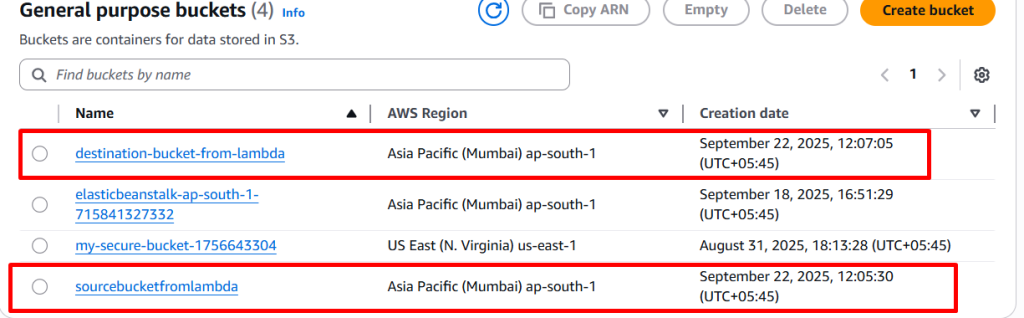
Step 1: Provision Source & Destination S3 Buckets
Provision two distinct Amazon S3 buckets inside the AWS Management Console:
- Source Bucket:
company-raw-uploads-2026 - Destination Bucket:
company-processed-backups-2026
Security Requirement: Keep Block all public access checked (ENABLED) for both buckets. AWS Lambda accesses S3 via internal IAM credentials over the AWS backbone network, eliminating any need for public internet exposure.
Step 2: Define Least-Privilege IAM Policy & Execution Role
Lambda requires explicit permissions to read from the source bucket, write to the destination bucket, and stream runtime execution logs to Amazon CloudWatch.
- Navigate to IAM > Policies > Create Policy > JSON and paste the following policy:
{
  "Version": "2012-10-17",
  "Statement": [
    {
      "Effect": "Allow",
      "Action": [
        "s3:GetObject"
      ],
      "Resource": "arn:aws:s3:::company-raw-uploads-2026/*"
    },
    {
      "Effect": "Allow",
      "Action": [
        "s3:PutObject"
      ],
      "Resource": "arn:aws:s3:::company-processed-backups-2026/*"
    },
    {
      "Effect": "Allow",
      "Action": [
        "logs:CreateLogGroup",
        "logs:CreateLogStream",
        "logs:PutLogEvents"
      ],
      "Resource": "arn:aws:logs:*:*:*"
    }
  ]
}
- Name the policy
LambdaS3ReplicationPolicy. - Navigate to IAM > Roles > Create Role. Select AWS Service > Lambda, attach
LambdaS3ReplicationPolicy, and save asLambdaS3ExecutionRole.
Step 3: Deploy Python Copy Handler in AWS Lambda
Create the serverless processing function and configure the runtime environment:
- Go to AWS Lambda > Create Function.
- Set Function Name:
AutoCopyS3Object. - Select Runtime: Python 3.12 (or latest stable release).
- Under Permissions, select Use an existing role and choose
LambdaS3ExecutionRole. - Replace the default IDE boilerplate code with the following production-ready Python script:
import json
import urllib.parse
import boto3

# Initialize low-level S3 client interface outside the handler for connection reuse
s3_client = boto3.client('s3')

def lambda_handler(event, context):
    # Extract object metadata from incoming S3 Event Notification record
    for record in event.get('Records', []):
        source_bucket = record['s3']['bucket']['name']
        # URL-decode the object key to handle spaces and special characters safely
        object_key = urllib.parse.unquote_plus(record['s3']['object']['key'])
        destination_bucket = 'company-processed-backups-2026'

        print(f"Initiating copy: s3://{source_bucket}/{object_key} -> s3://{destination_bucket}/{object_key}")

        try:
            copy_source = {'Bucket': source_bucket, 'Key': object_key}

            # Execute efficient serverless object copy operation
            s3_client.copy_object(
                CopySource=copy_source,
                Bucket=destination_bucket,
                Key=object_key
            )
            print(f"Successfully copied {object_key} to {destination_bucket}")

        except Exception as error:
            print(f"Error copying object {object_key} from bucket {source_bucket}: {str(error)}")
            raise error
Click Deploy to save changes.
Step 4: Configure S3 Put Event Notification Trigger
Link the source bucket events directly to your deployed Lambda handler:
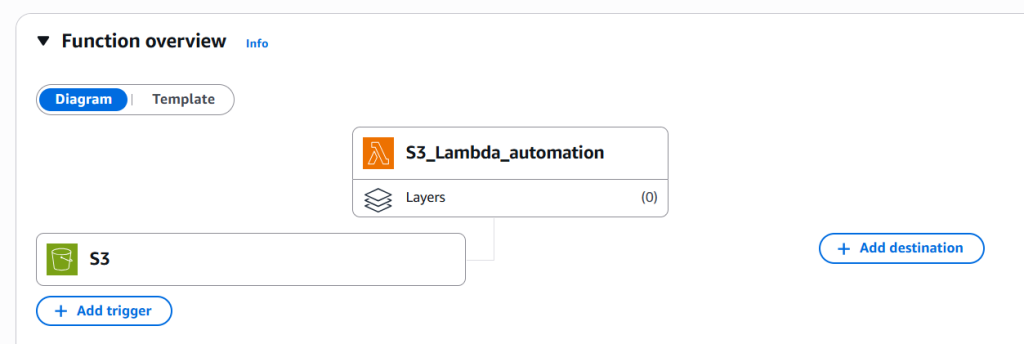
- Inside the Lambda Console, click Add Trigger > Select S3.
- Choose Source Bucket:
company-raw-uploads-2026. - Set Event Type: All object create events (
s3:ObjectCreated:*). - (Optional) Add a Prefix (e.g.,
uploads/) or Suffix (e.g.,.png,.pdf) to restrict execution scope. - Acknowledge recursive invocation risks and click Add.
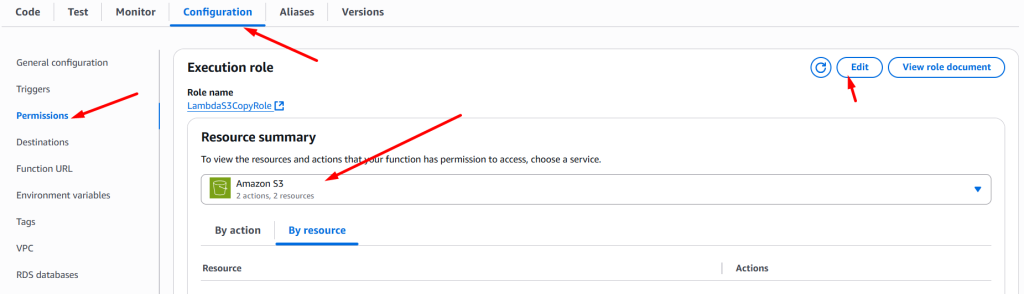
Go to configuration tab select permissions: Choose existing role → select LambdaS3CopyRole
Step 5: Test End-to-End File Replication & Audit Logs
- Open your
company-raw-uploads-2026S3 bucket and upload a test file (sample-document.pdf). - Open your
company-processed-backups-2026destination bucket—the file will appear within milliseconds. - To inspect execution trace records, navigate to AWS Lambda -> Monitor -> View CloudWatch Logs to confirm execution times and status codes.
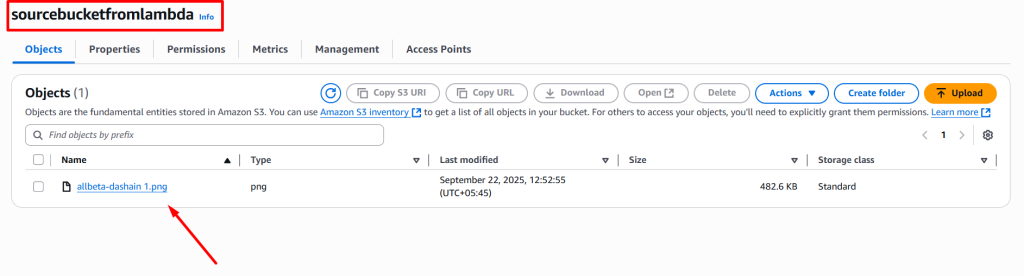
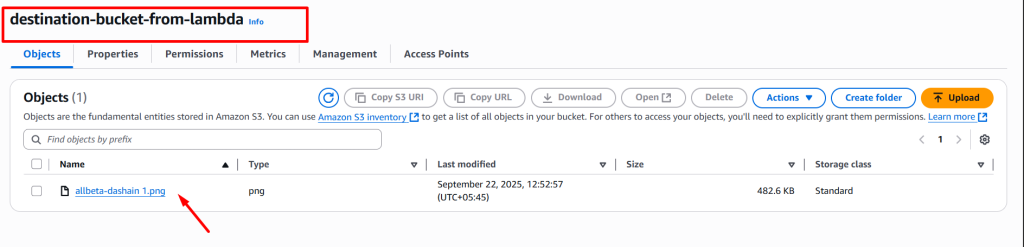
Note: Don’t forget to delete resources to avoid extra cost.
Critical Architectural Hazards & Mitigation:
- Recursive Invocation Loops: Never configure an S3 Event Trigger where the Source Bucket and Destination Bucket are the same bucket without explicit prefix routing. Doing so creates an infinite execution loop (Upload -> Trigger Lambda -> Copy -> Upload -> Trigger Lambda), leading to thousands of concurrent executions and massive bill spikes.
- URL-Encoding Edge Cases: Object keys containing spaces or special characters (e.g.,
my test image.jpg) are passed in event notifications as URL-encoded strings (my+test+image.jpg). Always useurllib.parse.unquote_plus()in Python before passing keys toboto3calls to avoidNoSuchKeyruntime errors.
Production Troubleshooting: Common Lambda S3 Event Errors
Serverless event triggers run asynchronously behind the scenes. Use the diagnostic matrix below to resolve issues fast when files fail to copy:
Error 1: An Error Occurred (AccessDenied) When Calling the CopyObject Operation
- The Error Log (CloudWatch):
[ERROR] ClientError: An error occurred (AccessDenied) when calling the CopyObject operation: Access Denied
- The Root Cause: The IAM Execution Role attached to the Lambda function is missing explicit
s3:GetObjectpermissions on the source bucket ORs3:PutObjectpermissions on the destination bucket. - The Fix: Revisit your IAM policy and verify that the
ResourceARNs contain wildcard trail paths (/*). For example,arn:aws:s3:::company-processed-backups-2026/*allows writing objects inside the bucket.
Error 2: An Error Occurred (NoSuchKey) When Calling the CopyObject Operation
- The Error Log (CloudWatch):
[ERROR] ClientError: An error occurred (NoSuchKey) when calling the CopyObject operation: The specified key does not exist.
- The Root Cause: The file uploaded to the source bucket contains spaces or special characters (e.g.,
Report 2026.pdf), and the Lambda script attempted to fetch the key without decoding string URL formatting (Report+2026.pdf). - The Fix: Ensure your code extracts object keys using
urllib.parse.unquote_plus(record['s3']['object']['key'])as shown in Step 3.
Error 3: File Uploaded to Source Bucket But Lambda Doesn’t Trigger
- The Error Log (CloudWatch):
No log streams exist inside /aws/lambda/AutoCopyS3Object.
- The Root Cause: S3 Event Notifications were configured with restrictive prefix filters, or the Lambda function resource policy lacks permission to allow S3 to invoke the function (
lambda:InvokeFunction). - The Fix: Open AWS Lambda -> Configuration -> Triggers, delete the existing S3 trigger, and re-add it directly from the Lambda console interface. The Lambda console automatically applies the required Resource-Based Bucket Invocation permissions behind the scenes.

