




Introduction
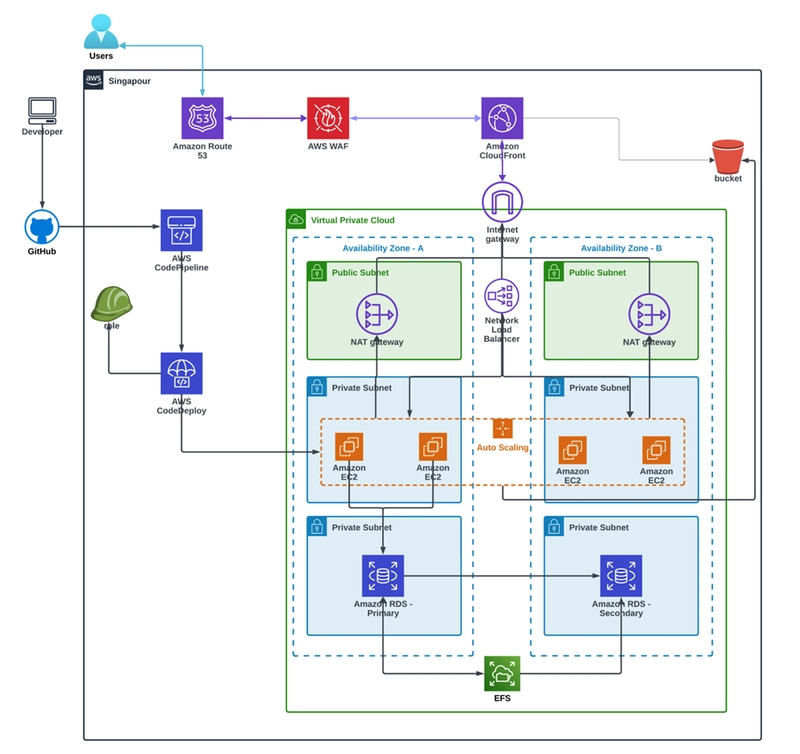
Deploying applications manually onto bare-metal or cloud instances introduces severe human error risks, slow release velocity, and operational bottlenecks. While cloud providers offer auto-scaling infrastructure, keeping application code in sync across continuously fluctuating server nodes requires automated orchestration. In this guide, we will engineer an end-to-end continuous deployment (CD) architecture on AWS that bridges source control with scalable runtime compute.
By integrating GitHub with AWS CodePipeline, AWS CodeDeploy, EC2 Auto Scaling Groups (ASG), and Network Load Balancers (NLB), every commit merged to your primary branch triggers an automated, zero-downtime deployment rollout. We will cover the underlying IAM trust relationships, design the required application lifecycle hooks via appspec.yml, and resolve high-availability routing challenges in production environments.
Now, Let’s start with practical
Step 1: Provision EC2 Launch Template & User Data Scripts
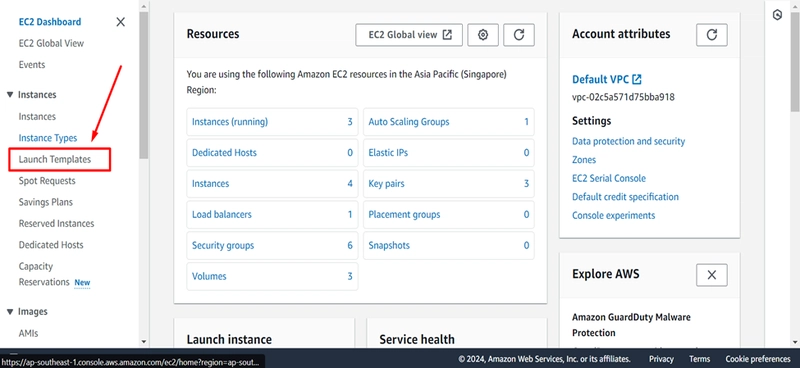
- Go to launch template under Instances and click on create launch template
- Launch Template Name: Provide launch template name
- Template version description: v1
- In OS and Images tab: Select your AMI
- In instances type: Select Free tire [t2.micro] or you can select your requirement
- Key pair: Create your key pair and keep it securely
- Network setting: leave as execute
- Security Group Name: write security group name
- Description: allow ssh and http (s)
- VPC: select default VPC
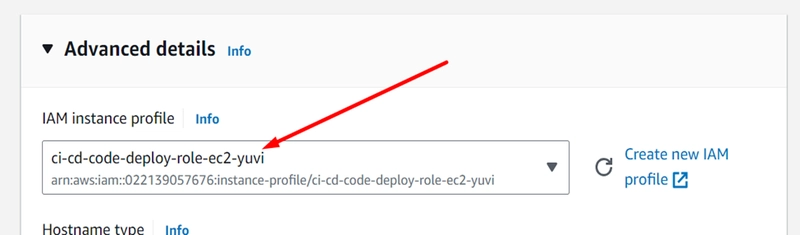
- Expand Advance detail In IAM instance profile: Select new IAM Profile and create role
We need to create IAM profile to attach role on EC2 for code deploy
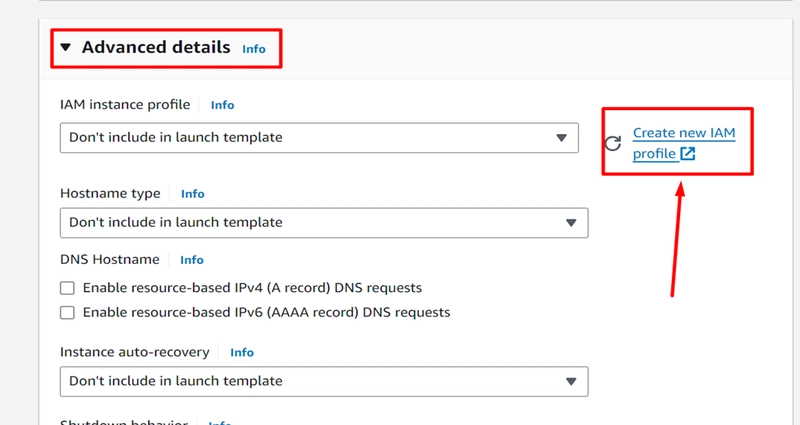
- After click a new IAM profile
- Select trusted entity: AWS Service
- Use Case: EC2 and then click on Next button
- Add permission tab: search awscodedeploy and select
- AmazonEC2RoleforAWSCodeDeploy
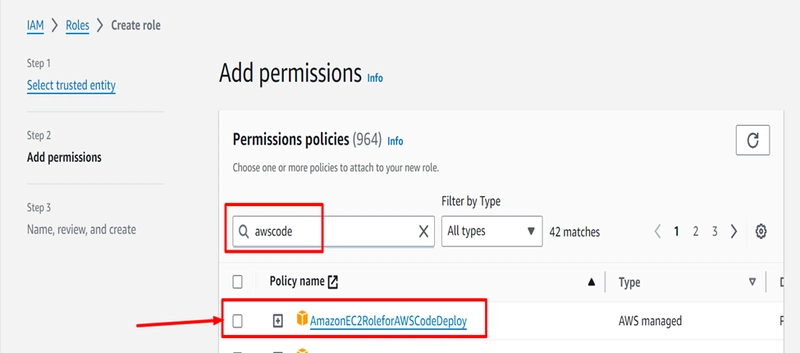
- In role detail tab: write role name and description then click on create role.
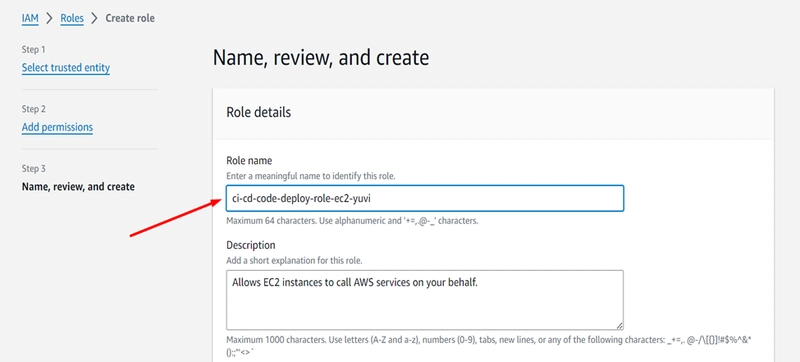
- In the Advanced Details tab, attach an IAM Instance Profile containing the AmazonEC2RoleforAWSCodeDeploy policy. Then, insert the initialization script inside the User Data field to install the Ruby dependencies and the active AWS CodeDeploy Agent on host launch
- Scroll down and search for User data and write some script:
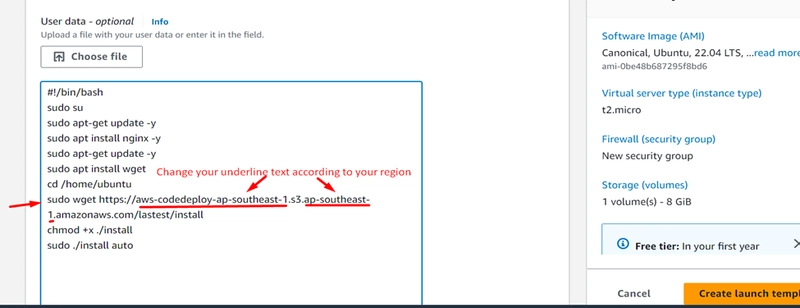
NOTE: Change the underline text according to your region
#!/bin/bash
sudo su
sudo apt-get update -y
sudo apt-get install nginx -y
sudo apt-get install wget -y
cd /home/ubuntu
sudo wget https://aws-codedeploy-ap-southeast-1.s3.ap-southeast-1.amazonaws.com/latest/install
chmod +x ./install
sudo ./install auto
sudo systemctl enable codedeploy-agent
sudo systemctl start codedeploy-agent
- Now, Click on Create launch template button
Step 2: Attach Auto Scaling Group to Network Load Balancer
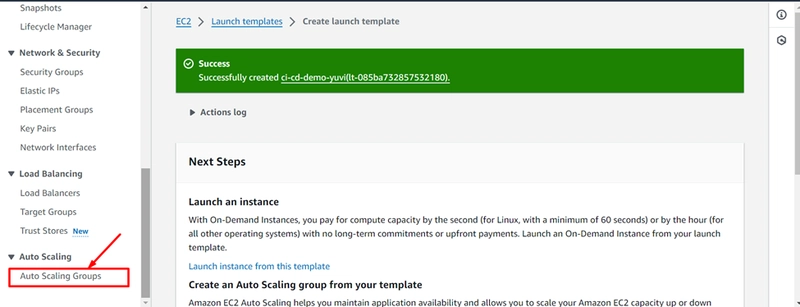
- Auto scaling configuration
- Name: write your ASG name
- Launch Template: Select your template
- Version: Latest (1)
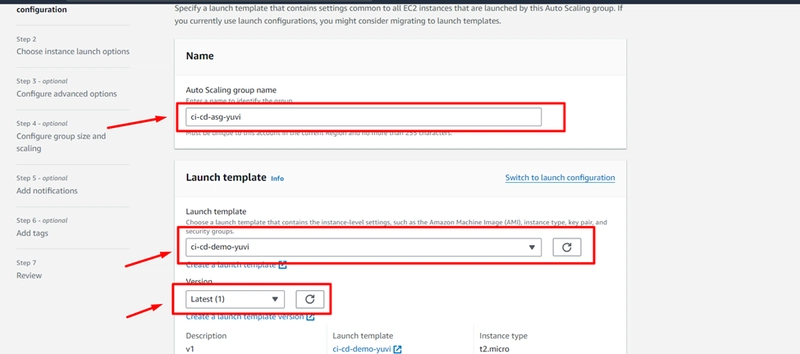
Click on next button
- Under Network setting
- Select VPC: select default VPC or select your own VPC
- Availability Zones and subnets: Select minimum two subnets like 1a and 1b
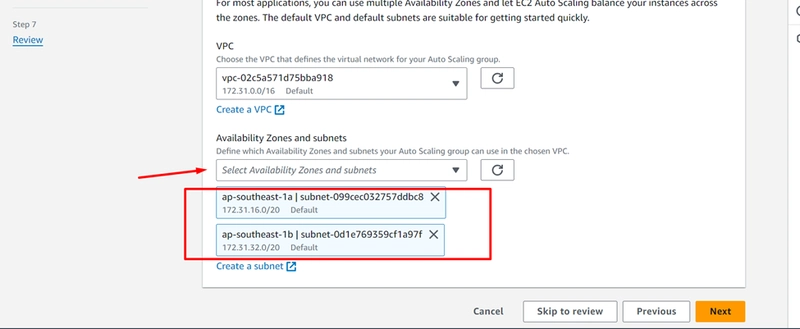
Click Next
Create Netwok Load balancer
- Under Load balancing tab:
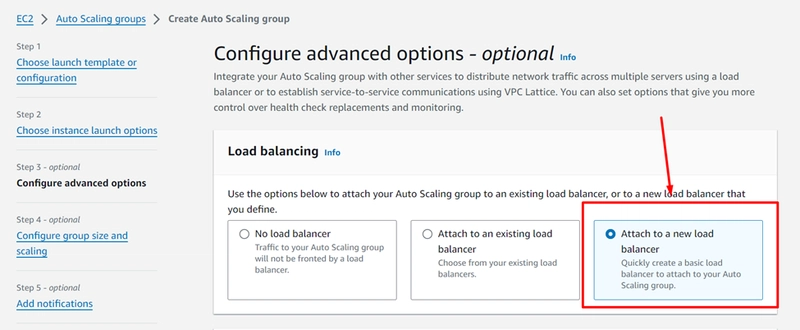
- Select Attach a new load balancer
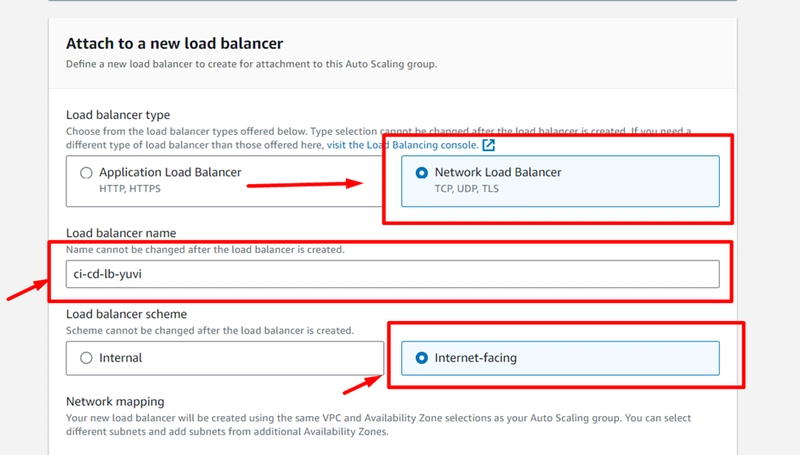
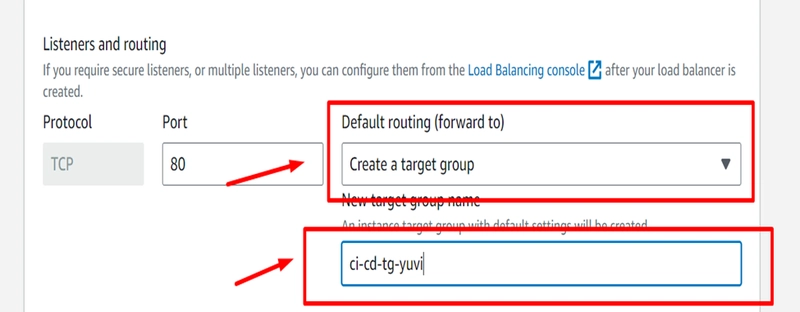
- Under Listeners and routing
- Protocol: TCP
- Port: 80
- Default routing (forward to): create a target group
- New target group name: Give your TG name
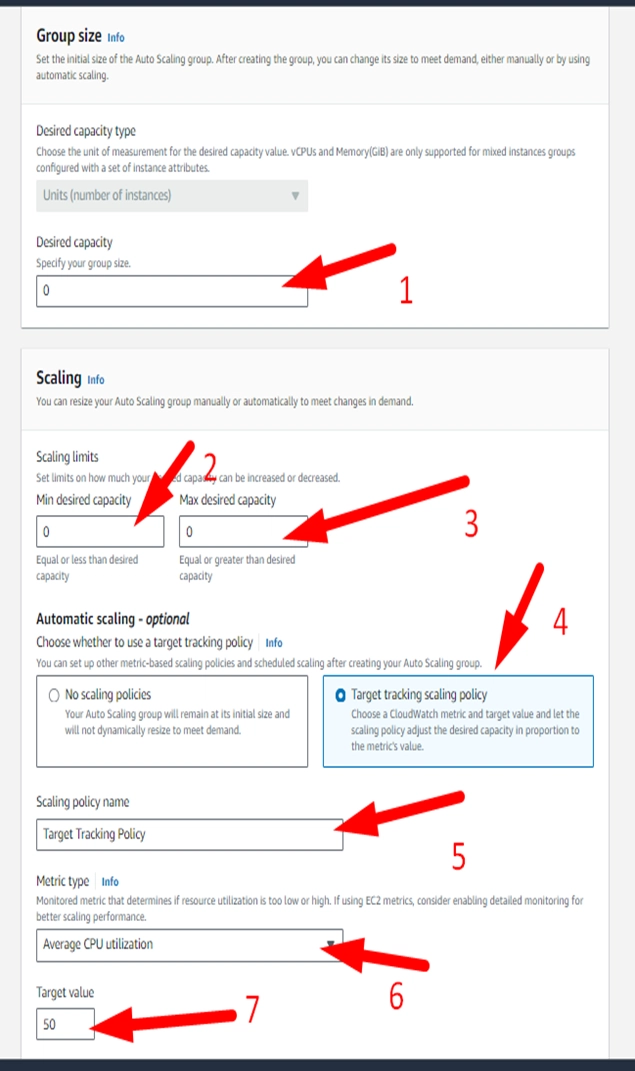
- Under Group Size
- Desired capacity: 0
- Min desired capacity: 0
- Max desired capacity: 0
- Select target tracking scaling policy
- Scaling policy name: Target tracking policy
- Metric type: Average CPU utilization
- Target Value: 50
- Then click on create button and you can see there is no instances and desired capacity.

Step 3: Define CodeDeploy Application & appspec.yml Manifest
Create a CodeDeploy Application selecting the EC2/On-Premises compute platform. For CodeDeploy to execute commands on target EC2 nodes, you must include an appspec.yml manifest file in the root directory of your GitHub repository:
version: 0.0
os: linux
files:
  - source: /
    destination: /var/www/html/
hooks:
  ApplicationStop:
    - location: scripts/stop_server.sh
      timeout: 300
      runas: root
  ApplicationStart:
    - location: scripts/start_server.sh
      timeout: 300
      runas: root
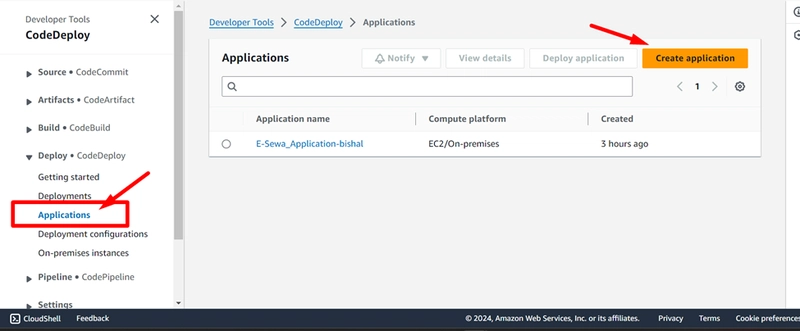
- Go to search box and type code dpeloy
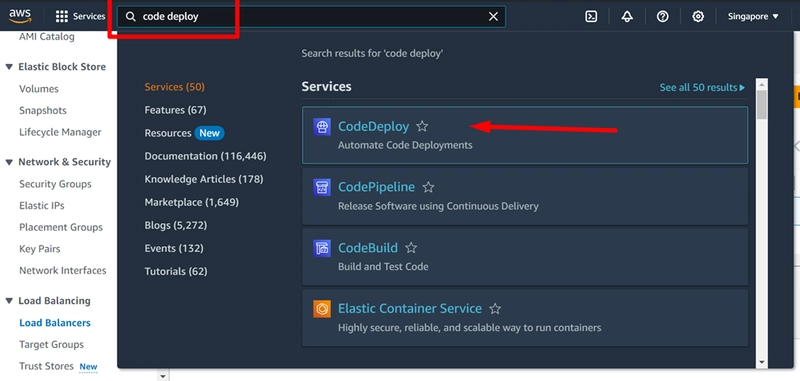
- Select Application under deploy tab and create application
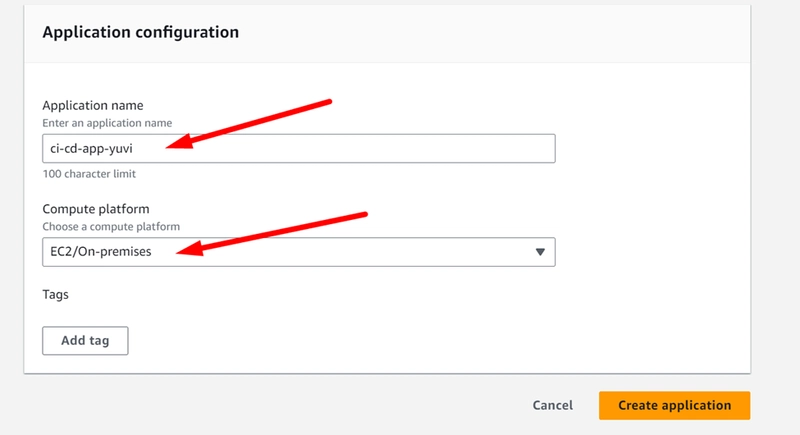
- Under Application Configuration:
- Application name: write your application name
- Compute platform: Select EC2/On-premises
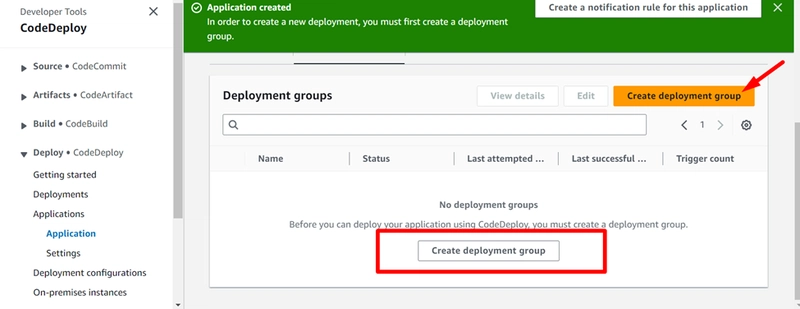
- Now, after create application click on create deployment group
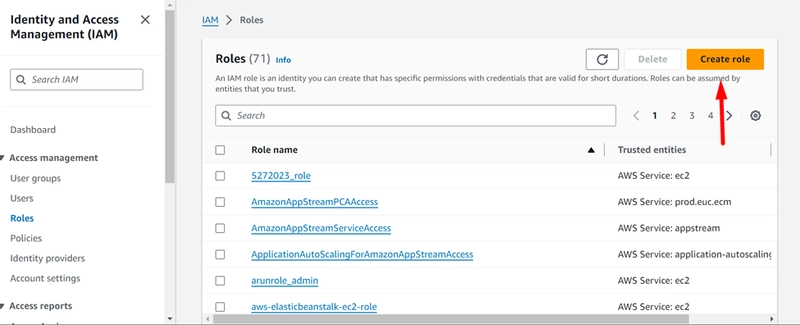
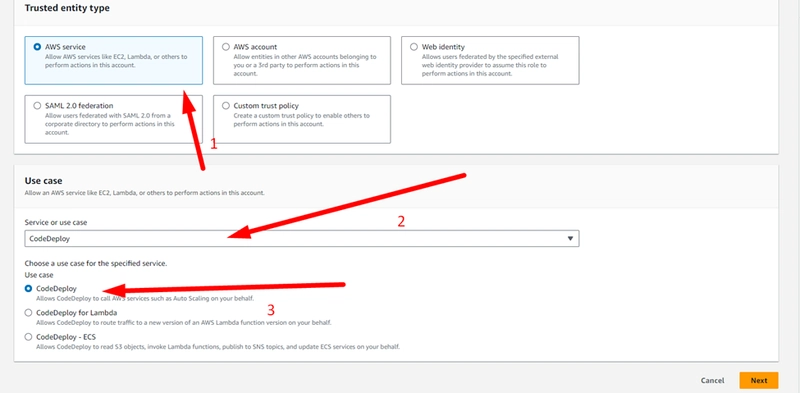
- In trusted entity type > select AWS service
- In use case > select CodeDeploy
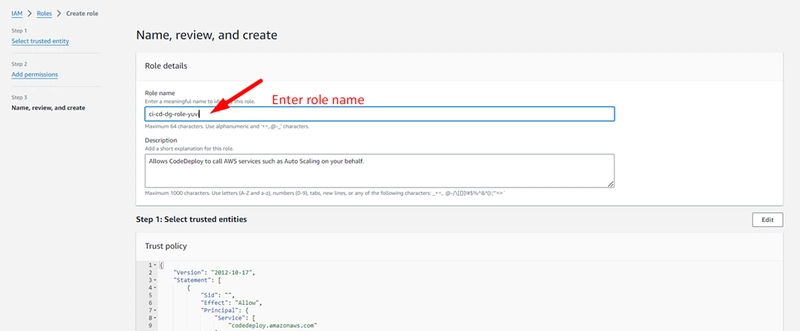
- Enter the role name
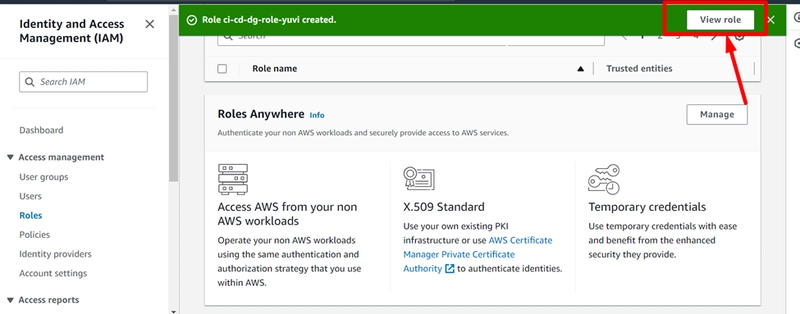
- Select View role
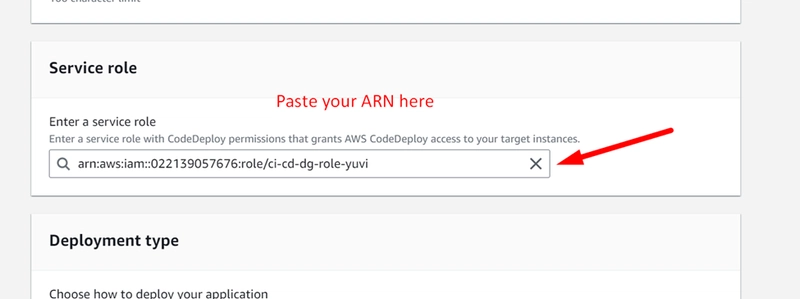
- then copy the ARN link of role
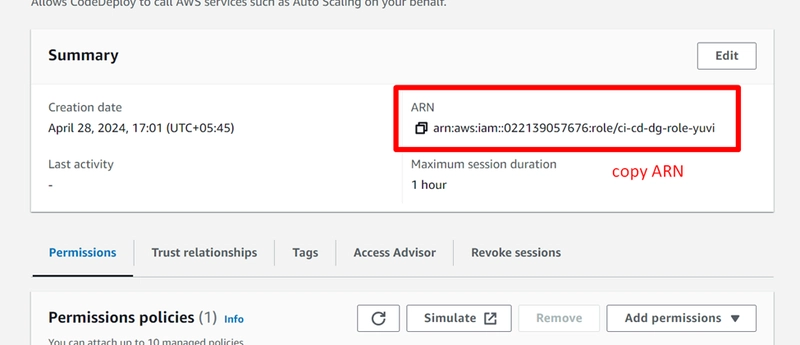
- Paste your ARN in service role tab under Deployment group
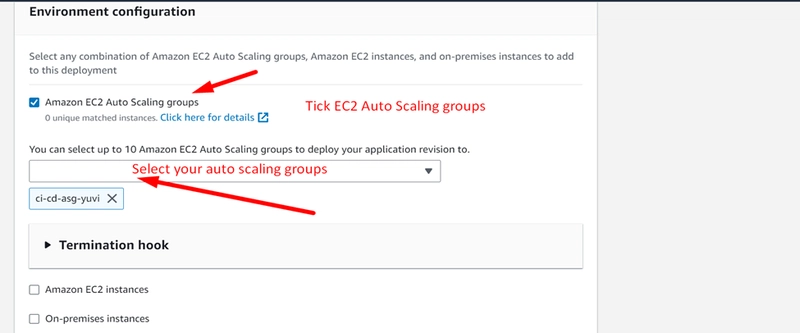
- Now Under Environment Configuration tab
- Mark on Amazon EC2 Auto scaling Groups
- Select your ASG
- In Deployment Setting
- Deployment Configuration : Select CodeDeployDefault.OneAtAtTime
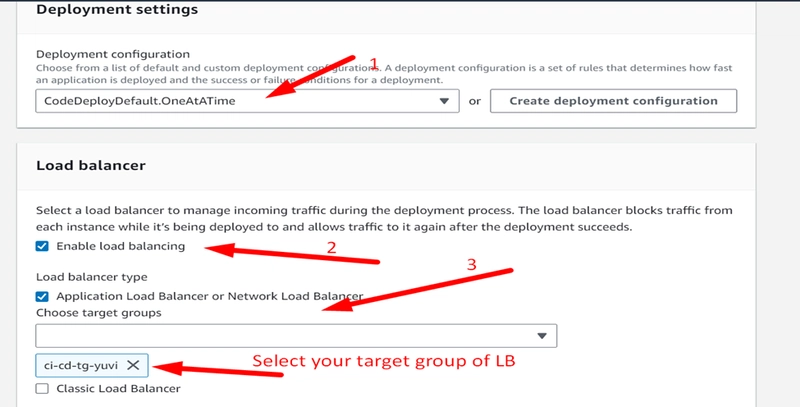
- In Load Balancer Tab
- Mark on Enable Load balancing
- Select your target group of Application LB or Network LB
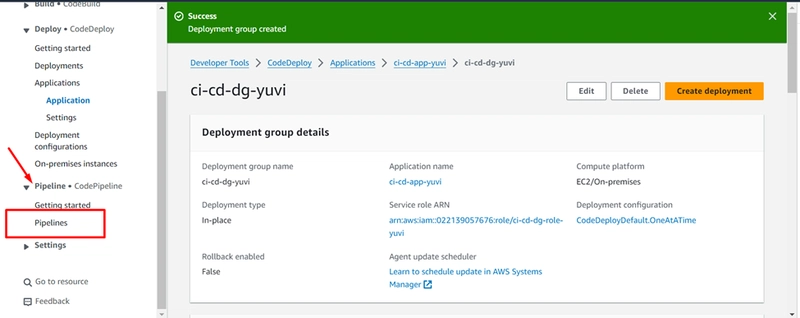
- Now, Go to Pipelines under pipelines side nav bar
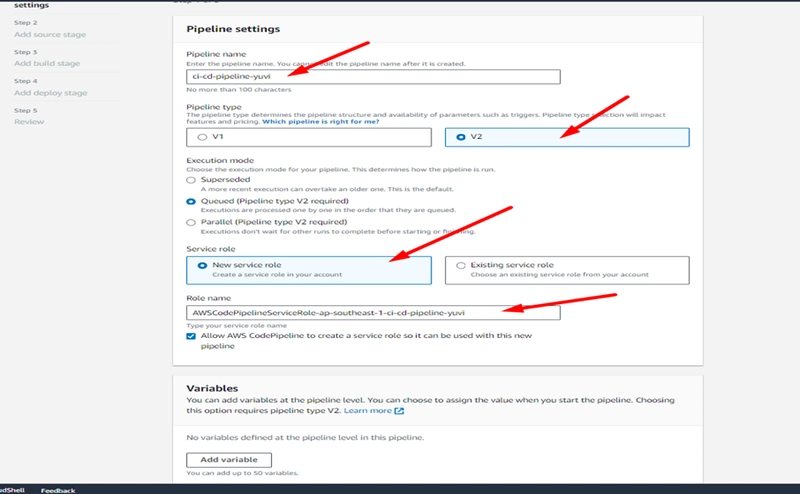
- In pipeline setting
- Pipeline name: write your name
- Pipeline type : Select v2
- Execution mode: select Queued (pipeline type V2 required)
- Service role: Select New service role
- Role name automatically appear in your role name box
Step 4: Connect GitHub Source to AWS CodePipeline V2
4.Connect GitHub Source to AWS CodePipeline V2:Orchestration.
In AWS CodePipeline, select Pipeline Type V2 and establish a GitHub (Version 2) connection via AWS CodeStar connections. Authorize repository access, select your target deployment branch (Main), skip the build stage if serving static artifacts, and bind the deployment stage to your AWS CodeDeploy Deployment Group.
- Under source Tab
- Source Provider: GitHub (Version 2)]
- Click on connect to GitHub
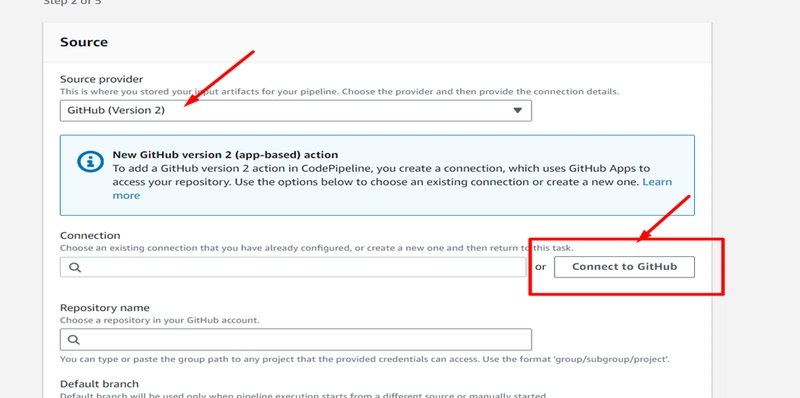
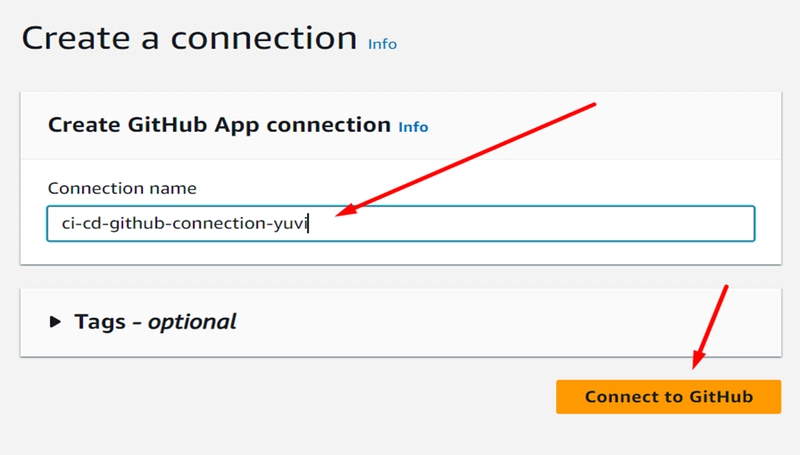
- Create Connection
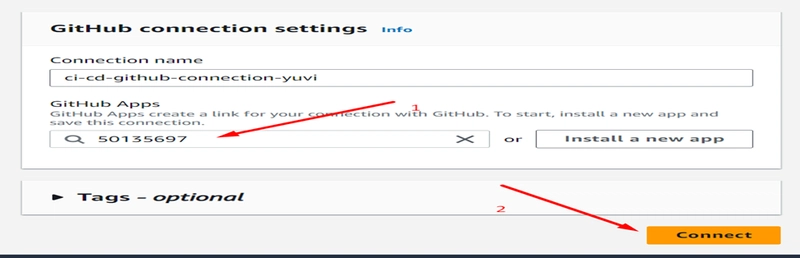
- Connection name: Give your connection name
- Then click on connect to GitHub button
- Click on Install new app
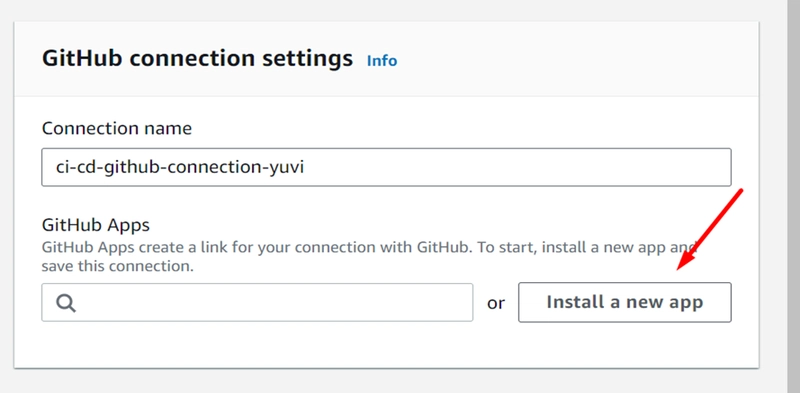
- Now, Login github
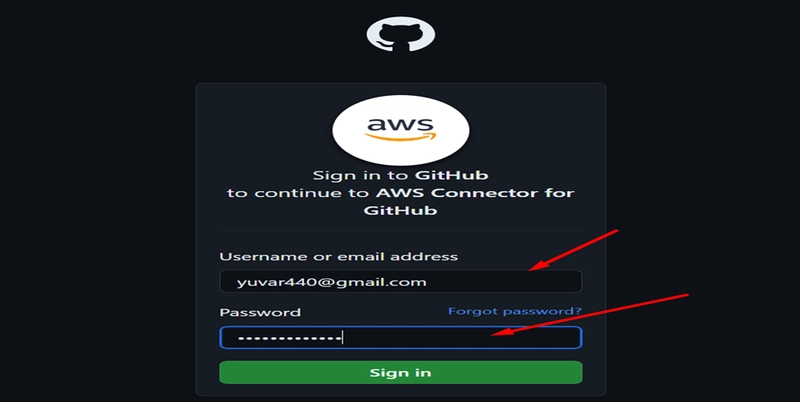
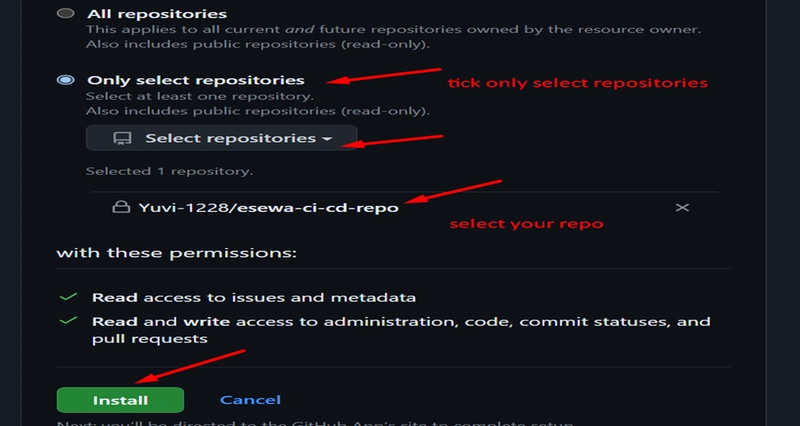
- Mark on Only select repositories
- Select your repositories
- Then click on install
- now, click on connect
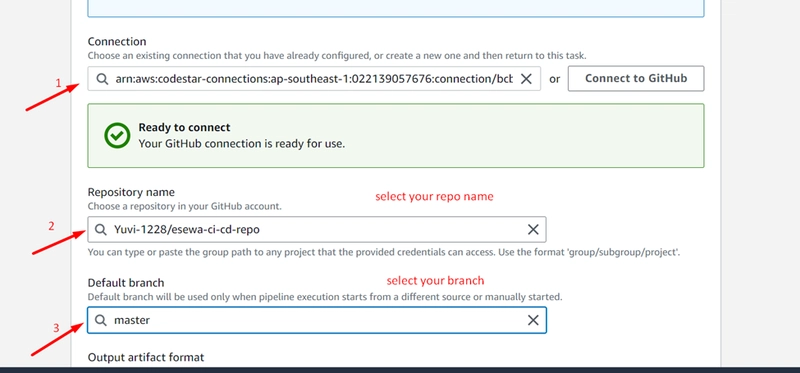
- ensure your repository name and default Branch is correct
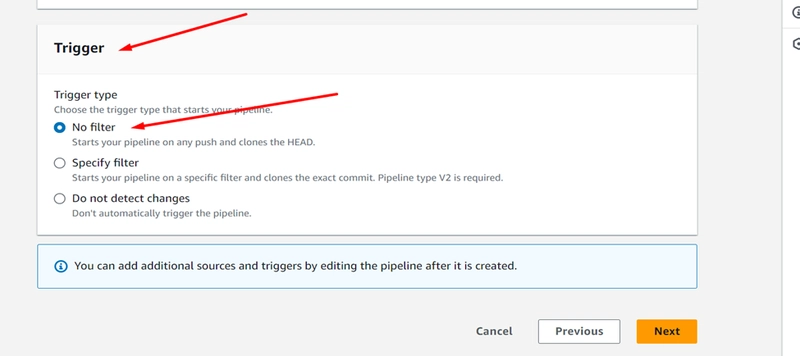
- Under Trigger Tab
- Select No filter
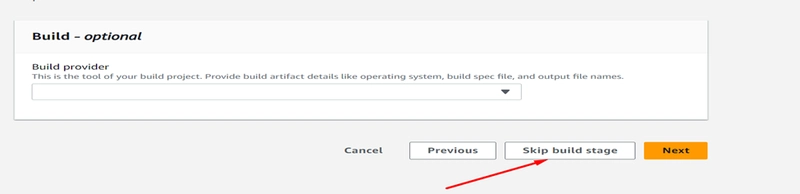
- Skip Build Stage
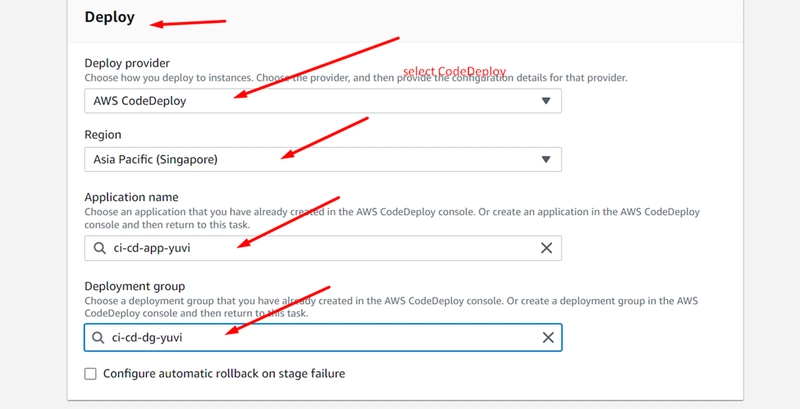
Step 5: Configure CodeDeploy
- Deploy provider: AWS CodeDeploy
- Region: Asia Pacific (Singapore)
- Application name: select your Application name
- Deployment group: select your Deployment group
- Click on deploy button
- Then, your code will be automatically deploying
- If there will error given as a picture below So, we have to configure auto scaling desired capacity.
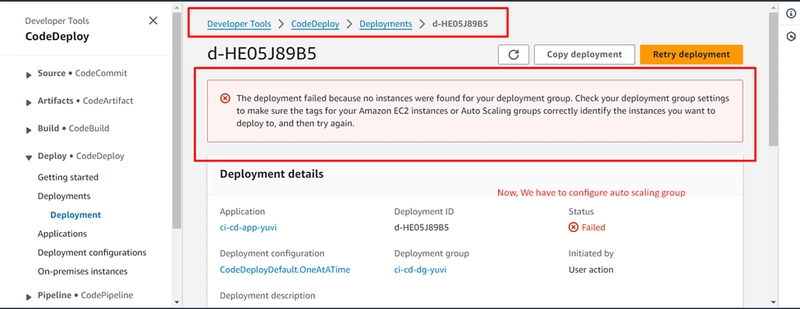
- Search EC2 > select auto scaling group
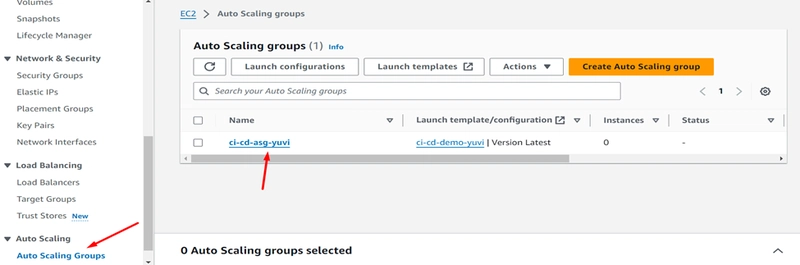
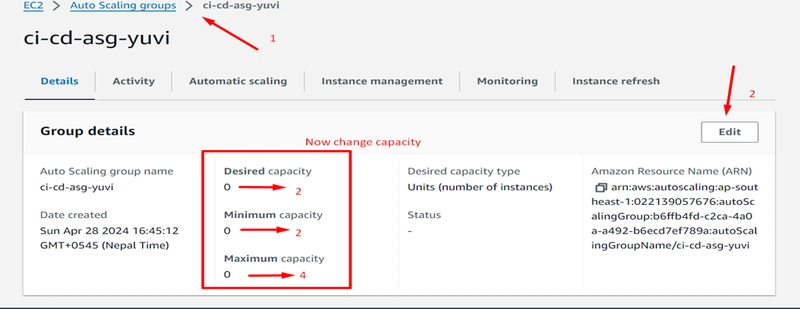
- select your ASG and change desired capacity value given as a picture below
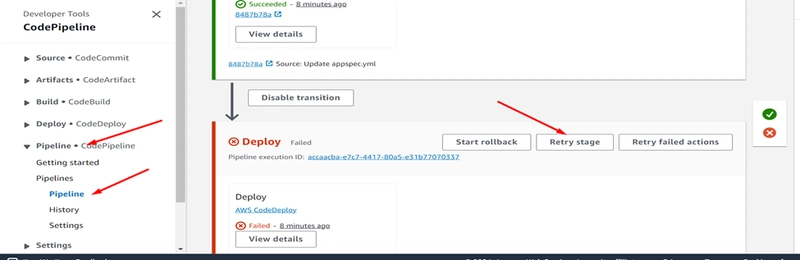
- again, go to CodePipeline and retry stage
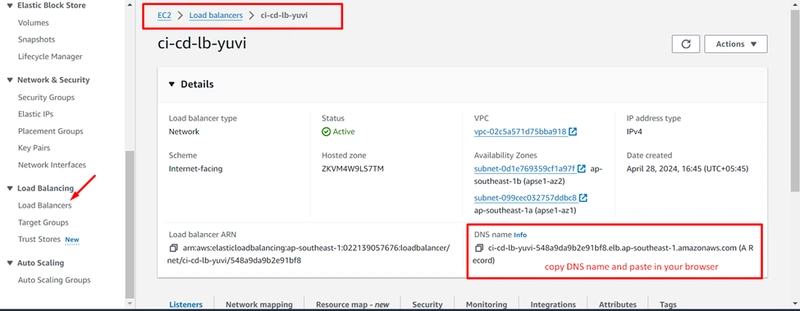
- After deploy go to load balancer dashboard and copy DNS name and paste it any browser your application will be working.
Your application is ready now
Automation is no longer optional in modern cloud infrastructure. A properly designed CI/CD pipeline improves deployment speed, reduces operational errors, and creates a more reliable production environment.
By integrating GitHub with AWS CodePipeline, Auto Scaling, CodeDeploy, and Load Balancing, we can create a scalable deployment architecture capable of handling real-world production traffic.
This project is not only useful for learning DevOps practically but also serves as a strong portfolio project for cloud engineers and AWS enthusiasts.

