


Amazing, If you want to host your own static website and public it in public then this blog is for you. AWS S3 ( Amazon Simple Storage Service) is an excellent choice because it is easy to setup , super cost effective and perfect for host static website which is made with HTML , CSS and JavaScript. So, In this blog I will guide you step by step how to host a static website on AWS S3.
Step 1 : Create a S3 bucket
- First of login your AWS Management Console
- Select your region where you want to create your bucket like us-east-1
- Search for the S3 bucket
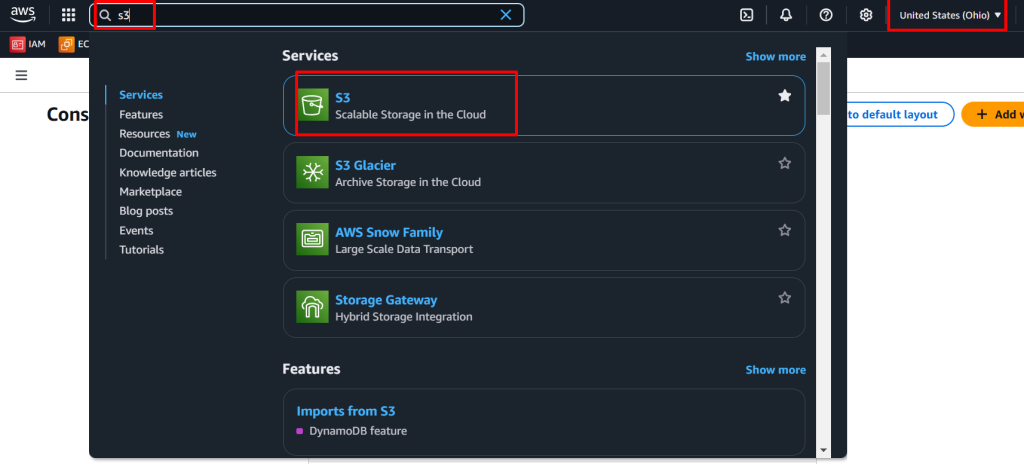
- Click on Create Bucket
- You have to provide unique name for your bucket [e.g: mystaticwebsitehost]
- Uncheck Block all public access so that your website can be publicly access.
- Now, click on create bucket
Step 2 : Upload your static website file on AWS S3
- After create your bucket click on your bucket name
- Then upload your file into bucket or just drag-drop
Step 3: Enable Static Website Hosting
- Select your S3 bucket
- Go to the Properties tab and scroll down to Static Website Hosting.
- Enable Static Website Hosting
- Specify the Index document (e.g: index.html) and Error document (e.g: error.html)
- Note: If you have error.html file then you have to write another make it blank.
- Then save changes
Step 4: Enable configure bucket policy
- Go to permission tab
- Scroll down to bucket policy section
- Click on edit button and paste this code
{
    "Version": "2012-10-17",
    "Statement": [
        {
            "Sid": "PublicReadGetObject",
            "Effect": "Allow",
            "Action": "s3:GetObject",
            "Principal": "*",
            "Resource": "arn:aws:s3:::YOUR-BUCKET-NAME/*"
        }
    ]
}
- Replace
arn:aws:s3:::YOUR-BUCKET-NAME/*with your bucket’s ARN in the Resource line. - Click on save changes
- Now, copy your static website hosting URL and paste it on browser
- Your website is live ….
Finally , we can host our static website live, after that you can bind this URL with your domain name.


Good https://is.gd/N1ikS2
Awesome https://is.gd/N1ikS2
Awesome https://is.gd/N1ikS2
Awesome https://is.gd/N1ikS2