




Introduction
As organizations migrate their workloads to the cloud, securing cloud infrastructure becomes a top priority. In Amazon Web Services (AWS), Identity and Access Management (IAM) is the foundation of cloud security.
In this tutorial, we will explain the core concepts of AWS IAM and demonstrate step-by-step how to restrict user access to specific EC2 instances using Resource Tags and Custom IAM JSON Policies.
What is AWS IAM?
AWS Identity and Access Management (IAM) is a web service that controls access to AWS resources. It manages authentication (who can log in) and authorization (what actions they can perform).
Using IAM, you can grant granular permissions to specific teams or services. This allows you to enforce the Principle of Least Privilege, ensuring users receive only the minimum access required to perform their jobs.
Core Concepts of AWS IAM
Understanding the core components of IAM is essential before designing security policies:
- IAM Users: Individual identities created in AWS with specific credentials (passwords or API access keys).
- IAM Groups: Collections of users. Attaching permissions to a group automatically applies those rules to all group members.
- IAM Roles: Temporary identities that users or AWS services (like EC2) can assume without using long-term access keys.
- IAM Policies: JSON documents that explicitly define allowed or denied actions on AWS resources.
Hands-On Guide: Restricting EC2 Instance Access with IAM Policies
In this practical exercise, we will create two EC2 instances tagged for development and production. Then, we will write a custom IAM policy that allows a user to control the development server while completely blocking access to the production server.
Step 1: Launch Tagged Development and Production EC2 Instances
First, launch two EC2 instances with specific tags to distinguish environments:
- Sign in to the AWS Management Console and open the EC2 Dashboard.
- Click Launch Instance and configure the Development Server:
- Name:
cwy-development-server - Resource Tag: Key:
env| Value:development - AMI: Amazon Linux 2023
- Instance Type:
t2.micro
- Name:
- Next, click Launch Instance again to create the Production Server:
- Name:
cwy-production-server - Resource Tag: Key:
env| Value:production - AMI: Amazon Linux 2023
- Instance Type:
t2.micro
- Name:

Step 2: Write a Tag-Based Custom IAM Policy
Now, create an IAM policy that enforces conditional permissions based on instance tags:
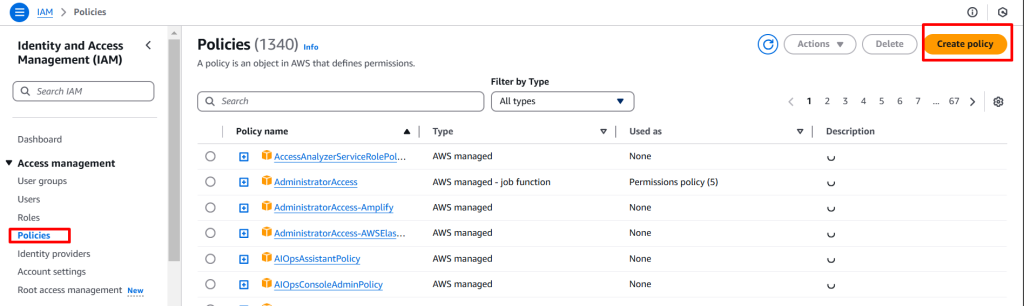
- Open the IAM Console and select Policies from the left navigation panel.
- Click Create policy and switch to the JSON editor tab.
- Paste the following JSON policy document:
{
  "Version": "2012-10-17",
  "Statement": [
    {
      "Sid": "AllowConsoleEC2Listing",
      "Effect": "Allow",
      "Action": [
        "ec2:DescribeInstances",
        "ec2:DescribeTags"
      ],
      "Resource": "*"
    },
    {
      "Sid": "AllowDevControl",
      "Effect": "Allow",
      "Action": [
        "ec2:StartInstances",
        "ec2:StopInstances"
      ],
      "Resource": "*",
      "Condition": {
        "StringEquals": {
          "ec2:ResourceTag/env": "development"
        }
      }
    },
    {
      "Sid": "DenyProductionAccess",
      "Effect": "Deny",
      "Action": [
        "ec2:StartInstances",
        "ec2:StopInstances",
        "ec2:TerminateInstances"
      ],
      "Resource": "*",
      "Condition": {
        "StringEquals": {
          "ec2:ResourceTag/env": "production"
        }
      }
    }
  ]
}
- Name the policy
CWYIAMPolicyEnvironmentForUserand click Create policy.
Step 3: Create IAM Group, Attach Policy, and Assign User
Next, set up an IAM user group to streamline permission management:
- In the IAM Console, navigate to User groups and click Create group.
- Set the group name to
DevelopmentGroup. - Search for
CWYIAMPolicyEnvironmentForUserin the policy list, select it, and click Create group. - Navigate to Users and click Create user:
- User Name:
developmentuser - Console Access: Enable Management Console access with a custom/autogenerated password.
- User Name:
- Add
developmentusertoDevelopmentGroupand finalize user creation.

Step 4: Verify Access Controls in the AWS Management Console
Finally, test the IAM policy boundaries by logging in with the newly created user credentials:
- Copy the Console Sign-in URL provided after user creation and open it in a private browser window.
- Log in using the
developmentusercredentials. - Navigate to the EC2 Dashboard:
- Select
cwy-development-server> Choose Instance state > Test Start/Stop actions (This should succeed). - Select
cwy-production-server> Choose Instance state > Test Start/Stop actions (AnAPI Error / Access Deniednotification will appear).
- Select

Production Security Best Practices for AWS IAM
- Lock Down the Root Account: Never use the AWS Account Root User for daily administrative tasks. Enable Multi-Factor Authentication (MFA) immediately and store root credentials securely.
- Enforce Least Privilege: Always grant only the specific permissions necessary to execute a given job function.
- Prefer IAM Roles Over Access Keys: Avoid creating long-lived programmatic access keys whenever possible. Use short-lived credentials via IAM Roles.
Troubleshooting Common IAM Policy Errors
Understanding permission evaluation helps debug access denial issues in enterprise AWS environments:
Error 1: User Cannot View Instances in AWS Console
- The Error: The EC2 console displays
You are not authorized to perform this operationwhen viewing the instance list. - The Fix: Ensure your custom policy includes the
ec2:DescribeInstancespermission without conditions. Console listing operations require non-conditional describe access.
Error 2: Implicit Deny vs. Explicit Deny Conflict
- The Error: A user is assigned multiple policies and actions are blocked unexpectedly.
- The Fix: In AWS IAM, an Explicit Deny in any policy always overrides an Allow statement. Review all attached managed and inline policies to resolve statement conflicts.

