


In today’s cloud-native era, deploying applications in containers is a must-have skill — especially for dynamic websites like WordPress. In this tutorial, you’ll learn how to deploy a WordPress website using Docker, push the container image to AWS Elastic Container Registry (ECR), and run it on Amazon EKS (Elastic Kubernetes Service).
This approach gives you scalability, resilience, and performance for your WordPress site — while using modern DevOps practices.
Let’s dive into the full step-by-step guide!
Prerequisites
Before starting, make sure you have:
An AWS Account
AWS CLI configured (
aws configure)Docker installed
kubectlinstalled and configuredeksctlinstalledBasic knowledge of Docker and Kubernetes
Step 1: Dockerize Your WordPress Application
First, let’s create a Docker file for frontend wordpress

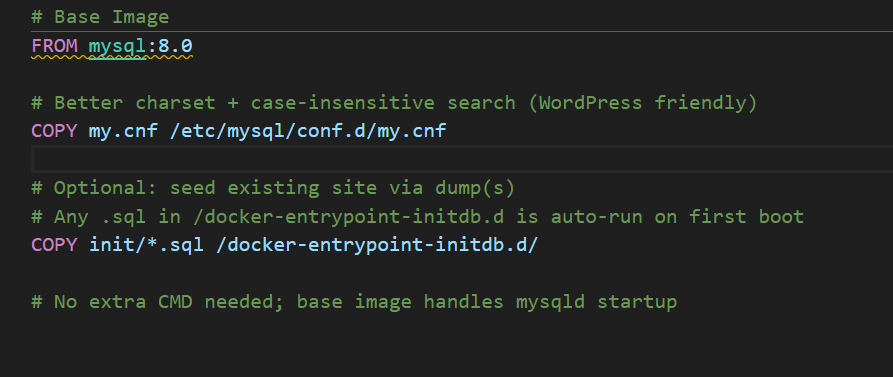
Similarly, Create Docker file for backend WordPress which means for MySQL
Now, Create docker-compose file
- We are using docker compose to build and run wordpress website in localhost

Basically, we have created a Dockerfile for both WordPress and MySQL, along with a Docker Compose file to build the docker images and run the containers locally. This allows us to verify that the website is working properly before deploying it to the cloud.
Now, Build Images using docker compose
docker compose build
Verify your images
docker images
Run docker container
docker compose up -d

After successfully run the container go to browser and paste URL
- http://localhost:8080/

Step 2: Push Your Docker Images to AWS ECR
Prerequisites
- Configure AWS CLI
- Set a AWS region and acoount
Set AWS region and AWS account
AWS_REGION=us-east-1
AWS_ACCOUNT_ID=$(aws sts get-caller-identity --query Account --output text)
To verifying
ehco $AWS_REGION
echo $AWS_ACCOUNT_ID
Now, create ECR repositories in AWS for both wp-frontend and wp-mysql.
# For WordPress
aws ecr create-repository --repository-name wp-frontend --region $AWS_REGION
# For Mysql
aws ecr create-repository --reposiroty-name wp-backend --region $AWS_REGION

Login to AWS ECR
aws ecr get-login-password -–region $AWS_REGION | docker login --username AWS --password-stdin ${AWS_ACCOUNT_ID}.dkr.ecr.${AWS_REGION}.amazonaws.com
Now tag your images to push to AWS ECR
# Tag for WordPress-frontend
docker tag cloudwithyuvi/wp-frontend:latest ${AWS_ACCOUNT_ID}.dkr.ecr.${AWS_REGION}.amazonaws.com/wp-frontend:latest

# tag for Mysql-Backend
docker tag cloudwithyuvi/wp-backend:8.0 ${AWS_ACCOUNT_ID}.dkr.ecr.${AWS_REGION}.amazonaws.com/wp-backend:8.0
Push the wordpress- frontend images in AWS ECR
docker push ${AWS_ACCOUNT_ID}.dkr.ecr.${AWS_REGION}.amazonaws.com/wp-frontend:latest

Push the mysql-backend images in AWS ECR
docker push ${AWS_ACCOUNT_ID}.dkr.ecr.${AWS_REGION}.amazonaws.com/wp-backend:8.0

You can verify your images in AWS ECR
- Go to AWS Console and click on ECR
- Click on your repository and you will find your images

Step 3: Deploy WordPress to AWS EKS using ECR Images
Prerequisites
- Configure AWS CLI
- Set a AWS region and acoount
- Install kubectl
- Install eksctl
- Install Helm
Install kubectl
curl -o kubectl https://amazon-eks.s3.us-west-2.amazonaws.com/1.30.0/2024-06-14/bin/linux/amd64/kubectl
chmod +x ./kubectl
sudo mv ./kubectl /usr/local/bin

kubectl version --client
Install eksctl
curl --silent --location "https://github.com/eksctl-io/eksctl/releases/latest/download/eksctl_$(uname -s)_amd64.tar.gz" | tar xz -C /tmp
sudo mv /tmp/eksctl /usr/local/bin

eksctl version
Now, create ECR repositories in AWS for both wp-frontend and wp-mysql.
# For WordPress
aws ecr create-repository --repository-name wp-frontend --region $AWS_REGION
# For Mysql
aws ecr create-repository --reposiroty-name wp-backend --region $AWS_REGION
Now, create role for EC2
- Go to AWS Console —> click on IAM
- Click on role tab and create
- Use Case: EC2
- Attach Policies
-
AmazonEKSWorkerNodePolicy
-
AmazonEC2ContainerRegistryReadOnly
-
AmazonEKS_CNI_Policy
-
- Role Name: EKSNodeRole
Attach Policy to nodegroup to access EBS volume
aws iam attach-role-policy --role-name <nodegroup-role-name> --policy-arn arn:aws:iam::aws:policy/AmazonEBSCSIDriverPolicy
Now, create AWS EKS cluster
eksctl create cluster \
  --name wordpress-cluster \
  --region ap-south-1 \
  --nodegroup-name wordpress-nodes \
  --node-type t3.medium \
  --nodes 2 \
  --nodes-min 2 \
  --nodes-max 4 \
  --managed
Note: It will take 10-15 min to create AWS EKS Cluster. You can take tea break 😂😂

Update Kubeconfig
aws eks --region ap-south-1 update-kubeconfig --name wordpress-cluster
Verifying and get nodes
kubectl get nodes

Install EBS CSI Driver [ For Storage ]
eksctl create iamserviceaccount --name ebs-csi-controller-sa --namespace kube-system --cluster wordpress-cluster --attach-policy-arn arn:aws:iam::aws:policy/service-role/AmazonEBSCSIDriverPolicy --approve --role-only --role-name AmazonEKS_EBS_CSI_DriverRole
Enable Driver from Console
aws eks create-addon --cluster-name wordpress-cluster --addon-name aws-ebs-csi-driver --service-account-role-arn arn:aws:iam::<account_id>:role/AmazonEKS_EBS_CSI_DriverRole
Verify Driver
kubectl get pods -n kube-system | grep ebs
Now, Create Menifest file for deploy wordpress
For namespace.yml
apiVersion: v1
kind: Namespace
metadata:
  name: wordpress
Apply namespace.yml
kubectl apply -f namespace.yaml
For wordpress-pvc.yml
apiVersion: v1
kind: PersistentVolumeClaim
metadata:
  name: wp-pv-claim
  namespace: wordpress
spec:
  accessModes:
    - ReadWriteOnce
  resources:
    requests:
      storage: 20Gi
  storageClassName: gp2
Apply wordpress-pvc.yml
kubectl apply -f wordpress-pvc.yml
For mysql-pvc.yml
apiVersion: v1
kind: PersistentVolumeClaim
metadata:
  name: wp-pv-claim
  namespace: wordpress
spec:
  accessModes:
    - ReadWriteOnce
  resources:
    requests:
      storage: 20Gi
  storageClassName: gp2
Apply mysql-pvc.yml
kubectl apply -f mysql-pvc.yml
For wordpress-deployment.yml
apiVersion: apps/v1
kind: Deployment
metadata:
  name: wordpress
  namespace: wordpress
spec:
  replicas: 2
  selector:
    matchLabels:
      app: wordpress
  template:
    metadata:
      labels:
        app: wordpress
    spec:
      containers:
      - image: .dkr.ecr.ap-south-1.amazonaws.com/:latest
        name: wordpress
        env:
        - name: WORDPRESS_DB_HOST
          value: mysql.wordpress.svc.cluster.local:3306
        - name: WORDPRESS_DB_USER
          value: wpuser
        - name: WORDPRESS_DB_PASSWORD
          value: wppassword
        - name: WORDPRESS_DB_NAME
          value: wordpress
        ports:
        - containerPort: 80
        volumeMounts:
        - name: wp-persistent-storage
          mountPath: /var/www/html
      volumes:
      - name: wp-persistent-storage
        persistentVolumeClaim:
          claimName: wp-pv-claim
Apply wordpress-deployment.yml
kubectl apply -f wordpress-deployment.yml
For wordpress-service.yml
apiVersion: v1
kind: Service
metadata:
  name: wordpress-service
  namespace: wordpress
spec:
  type: LoadBalancer
  ports:
    - port: 80
  selector:
    app: wordpress
Apply wordpress-service.yml
kubectl apply -f wordpress-service.yml
For mysql-deployment.yml
apiVersion: apps/v1
kind: Deployment
metadata:
  name: mysql
  namespace: wordpress
spec:
  selector:
    matchLabels:
      app: mysql
  strategy:
    type: Recreate
  template:
    metadata:
      labels:
        app: mysql
    spec:
      containers:
      - image: mysql:8.0
        name: mysql
        env:
        - name: MYSQL_ROOT_PASSWORD
          value: rootpassword
        - name: MYSQL_DATABASE
          value: wordpress
        - name: MYSQL_USER
          value: wpuser
        - name: MYSQL_PASSWORD
          value: wppassword
        ports:
        - containerPort: 3306
          name: mysql
        volumeMounts:
        - name: mysql-persistent-storage
          mountPath: /var/lib/mysql
      volumes:
      - name: mysql-persistent-storage
        persistentVolumeClaim:
          claimName: mysql-pv-claim
Apply mysql-deployment.yml
kubectl apply -f mysql-deployment.yml
For mysql-servcie.yml
apiVersion: v1
kind: Service
metadata:
  name: mysql
  namespace: wordpress
spec:
  ports:
    - port: 3306
  selector:
    app: mysql
  clusterIP: None
Apply mysql-servcie.yml
kubectl apply -f mysql-service.yml
Now, Verify persistent volume claim will be bound status
kubectl get pvc -n wordpress
Verify pods status are running
kubectl get pods -n wordpress
Copy the external IP for run your website on browser
kubectl get svc -n wordpress

If all are running status then copy the External IP of wordpress-service and paste it on your browser.


