

Introduction
In modern multi-tenant cloud architectures, organizations frequently isolate environments across distinct AWS accounts for security boundaries. For example, building Docker images in a primary Development account (Account A) and deploying them into a Production environment (Account B) requires secure, cross-account container distribution. Amazon Elastic Container Registry (ECR) supports granular IAM resource policies to share container artifacts safely without making repositories public.
In this comprehensive production walkthrough, we will containerize a web application, push the image to a private ECR repository in Account A, configure Cross-Account IAM policies to delegate pull access to Account B, and orchestrate a serverless deployment using AWS Elastic Beanstalk via a custom Dockerrun.aws.json manifest.
What is Amazon ECR?
Amazon Elastic Container Registry (ECR) is a fully managed Docker container registry that makes it easy to store, manage, and deploy Docker container images. ECR eliminates the need to manage your own container repositories, making it an ideal choice for developers who are using containers in the AWS ecosystem.
Step 1: Create Application Assets and Build Local Docker Image
First, establish a project workspace on your local terminal and define your custom web assets and Docker manifest
- Create a project workspace directory and switch into it:
mkdir DockerImage && cd DockerImage
- Create a simple web application entrypoint (
index.html):
Cross-Account ECR Deployment


  Cloud with Yuvi - Multi-Account ECR to Beanstalk
  If you see this page, the container was pulled across AWS Accounts and deployed on Elastic Beanstalk successfully!
- Construct a standard
Dockerfilereferencing an Nginx web server base:
FROM nginx:latest
COPY index.html /usr/share/nginx/html/
EXPOSE 80
- Next, build your local Docker image using a descriptive tag:
docker build -t cloudwithyuvi/my-docker-image-cross-account .
Step 2: Create Private ECR Repository & Push Image (Account A)
Now, authenticate your local terminal against Account A and push the built image to Amazon ECR:
- Set environmental variables for Account A
export AWS_REGION="us-east-1"
export ACCOUNT_A_ID=$(aws sts get-caller-identity --query Account --output text)
- Create a private Amazon ECR repository inside Account A:
aws ecr create-repository \
  --repository-name cloudwithyuvi/my-docker-image-cross-account \
  --region $AWS_REGION
- Authenticate your local Docker CLI daemon against the Account A ECR registry
aws ecr get-login-password --region $AWS_REGION | docker login --username AWS --password-stdin ${ACCOUNT_A_ID}.dkr.ecr.${AWS_REGION}.amazonaws.com
- Tag and push your local image to the newly created ECR repository
docker tag cloudwithyuvi/my-docker-image-cross-account:latest ${ACCOUNT_A_ID}.dkr.ecr.${AWS_REGION}.amazonaws.com/cloudwithyuvi/my-docker-image-cross-account:latest

docker push ${ACCOUNT_A_ID}.dkr.ecr.${ACCOUNT_A_ID}.amazonaws.com/cloudwithyuvi/my-docker-image-cross-account:latest
Step 3: Attach Resource Policy for Cross-Account Pull Access
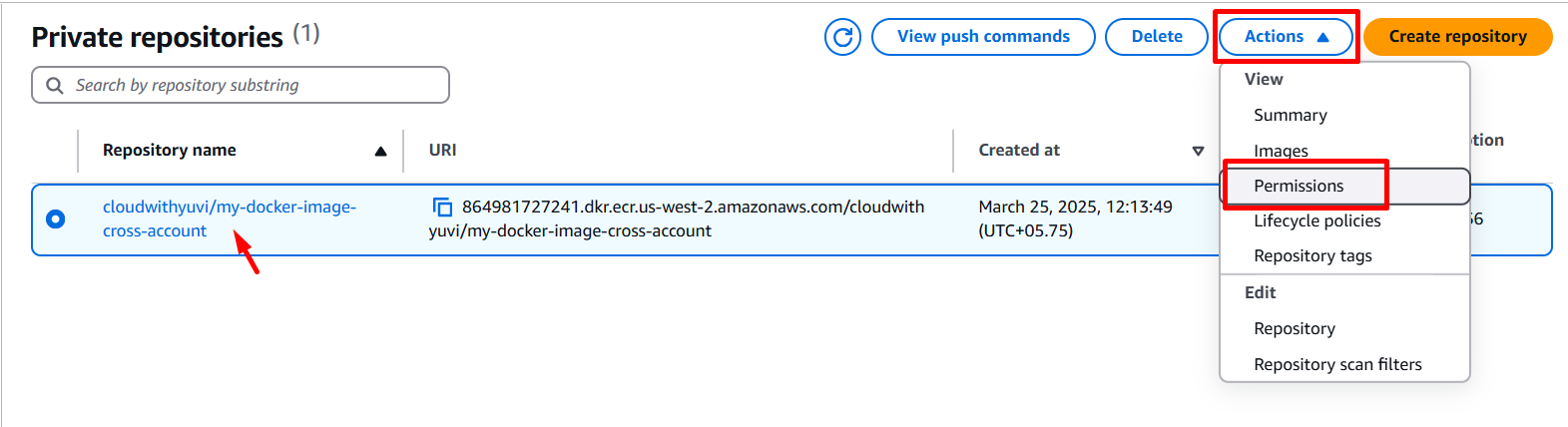
To allow Account B to pull images from Account A’s private registry, you must attach an ECR Repository Policy:
- In Account A, navigate to Amazon ECR > Repositories > cloudwithyuvi/my-docker-image-cross-account.
- Select Permissions from the left menu and click Edit Policy JSON.
- Apply the following cross-account IAM policy (replace
ACCOUNT_B_IDwith your secondary AWS Account ID):
{
  "Version": "2012-10-17",
  "Statement": [
    {
      "Sid": "AllowCrossAccountPull",
      "Effect": "Allow",
      "Principal": {
        "AWS": "arn:aws:iam::ACCOUNT_B_ID:root"
      },
      "Action": [
        "ecr:BatchCheckLayerAvailability",
        "ecr:BatchGetImage",
        "ecr:GetDownloadUrlForLayer"
      ]
    }
  ]
}
- Save changes to enforce the cross-account trust policy.
Step 4: Authenticate and Pull Image in Target Account (Account B)
Switch your AWS CLI context or terminal credentials to Account B to verify cross-account image retrieval
- Authenticate Docker in Account B using Account A’s ECR registry URI
export ACCOUNT_A_ID="111122223333" # Replace with Account A ID
export AWS_REGION="us-east-1"

aws ecr get-login-password --region $AWS_REGION | docker login --username AWS --password-stdin ${ACCOUNT_A_ID}.dkr.ecr.${AWS_REGION}.amazonaws.com
- Execute the pull command referencing Account A’s ECR image URI directly
docker pull ${ACCOUNT_A_ID}.dkr.ecr.${AWS_REGION}.amazonaws.com/cloudwithyuvi/my-docker-image-cross-account:latest
Step 5: Configure Elastic Beanstalk EC2 Instance Profile Role
Before launching Elastic Beanstalk in Account B, create an IAM EC2 Instance Profile with ECR pull permissions:
- In Account B, open AWS IAM Console > Roles > Create Role.
- Select AWS Service as trusted entity type and choose EC2.
- Attach the following managed AWS policies:
AmazonEC2ContainerRegistryReadOnlyAWSElasticBeanstalkWebTierAWSElasticBeanstalkWorkerTier
- Name the role
EC2-ElasticBeanstalk-ECR-Roleand click Create Role.
Step 6: Deploy Application to AWS Elastic Beanstalk using Dockerrun.aws.json
Finally, deploy the cross-account container image to an AWS Elastic Beanstalk single-container environment:
- Create a deployment manifest named
Dockerrun.aws.jsonon your local machine:
{
  "AWSEBDockerrunVersion": "1",
  "Image": {
    "Name": "ACCOUNT_A_ID.dkr.ecr.us-east-1.amazonaws.com/cloudwithyuvi/my-docker-image-cross-account:latest",
    "Update": "true"
  },
  "Ports": [
    {
      "ContainerPort": 80
    }
  ]
}
- Open AWS Elastic Beanstalk Console in Account B and click Create environment.
- Configure the environment parameters:
- Environment Tier: Web server environment
- Application Name:
Docker-CrossAccount-App - Platform: Docker (Managed platform)
- Application Code: Select Upload your code and choose your
Dockerrun.aws.jsonfile.
- Under Service Access, attach the
EC2-ElasticBeanstalk-ECR-Rolecreated in Step 5 as your EC2 instance profile. - Click Submit and wait for deployment completion. Once status turns Green, visit the environment CNAME URL to see your live web application!

Enterprise Cross-Account ECR Security Best Practices:
- Avoid Public Registries for Proprietary Code: Never make ECR repositories public just to share images between internal AWS accounts. Always utilize granular
Principalresource policies. - Cross-Account Authorization Tokens: Remember that
docker logintokens generated byaws ecr get-login-passwordexpire automatically after 12 hours. Ensure your CI/CD pipelines request fresh authorization tokens during automated deployments.
Production Troubleshooting: Common Cross-Account ECR & Beanstalk Errors
Cross-account image sharing relies on matching IAM permissions across distinct AWS boundaries. Use this diagnostic table to resolve deployment failures fast:
Error 1: Elastic Beanstalk Deployment Fails with ImagePullBackOff / Access Denied
- The Error Log (Elastic Beanstalk Event History):
Failed to pull image "ACCOUNT_A_ID.dkr.ecr.us-east-1.amazonaws.com/...": pull access denied, repository does not exist or may require 'docker login'.
- The Root Cause: The EC2 Instance Profile attached to Elastic Beanstalk in Account B lacks
AmazonEC2ContainerRegistryReadOnlypermissions, or Account A’s ECR policy does not permit Account B’s IAM role ARN. - The Fix: Ensure Account A’s ECR JSON permission policy allows
arn:aws:iam::ACCOUNT_B_ID:rootas shown in Step 3.
Error 2: ECR Get-Login-Password Fails During AWS CLI Execution
- The Error Log (Terminal CLI Output):
An error occurred (AccessDeniedException) when calling the GetAuthorizationToken operation: User is not authorized to perform: ecr:GetAuthorizationToken.
- The Root Cause: The IAM User or Role executing the command in Account B is missing global ECR authorization permissions.
- The Fix: Attach
AmazonEC2ContainerRegistryReadOnlyorAmazonEC2ContainerRegistryFullAccesspermissions to your IAM user executingaws ecr get-login-password.
Error 3: Dockerrun.aws.json Validation Failure
- The Error Log (Elastic Beanstalk Dashboard):
The Dockerrun.aws.json file is invalid. Key "Image" is missing or malformed.
- The Root Cause: Syntax errors or missing quotes in
Dockerrun.aws.jsonmanifest syntax, or using Version"2"syntax (which is reserved for Multi-Container ECS platforms) instead of Version"1". - The Fix: Validate JSON syntax using
jqand ensure"AWSEBDockerrunVersion": "1"is specified for single-container Docker Beanstalk platforms.

