


If you are planning to work with AWS services from your computer, one essential tool you will need is the AWS Command Line Interface (CLI). It lets you manage AWS services right from your terminal or command prompt. In this post, I will guide you through installing AWS CLI and setting it up so you can start using AWS smoothly.
What is AWS CLI?
AWS CLI is a command-line tool that allows you to interact with AWS services using simple commands. Instead of clicking around the AWS Console, you can automate tasks, manage resources, and run scripts directly from your terminal.
Step 1: Installing AWS CLI
The installation process depends on your operating system. I’ll cover the most common platforms: Windows, macOS, and Linux.
For Windows:
Download the AWS CLI installer from the official AWS website:
https://awscli.amazonaws.com/AWSCLIV2.msiRun the installer and follow the on-screen instructions.
To verify the installation, open Command Prompt and run:
aws --version
- You should see the AWS CLI version printed.
For macOS:
- If you have Homebrew installed (which is a popular package manager for macOS), run:
brew install awscli
- If you don’t have Homebrew, you can install AWS CLI using the official package:
Download the installer from: https://awscli.amazonaws.com/AWSCLIV2.pkg
Run the installer and follow prompts.
After installation, verify by running in Terminal:
aws --verison
For Linux:
- Download the AWS CLI bundle with curl or wget:
curl "https://awscli.amazonaws.com/awscli-exe-linux-x86_64.zip" -o "awscliv2.zip"
- Install unzip package if you don’t have install.
- Unzip the package:
sudo apt-get install unzip
unzip awscliv2.zip
- Run the install script:
sudo ./aws/install
- Confirm installation:
aws --version
Step 2: Configure AWS CLI
After installing AWS CLI, you need to configure it with your AWS credentials. These credentials tell AWS who you are and what permissions you have.
- Log in to your AWS Management Console.
- Go to IAM (Identity and Access Management).
- First create a user for AWS CLI
- Click on user and click on create user button
- Provide username : xxxxx
- Tick on Provide user access to the AWS Management Console and click Next
- Select Attach policies directly under permission option
- Select least privilage policy under perimission policy then click next
- Click on create user button
- Download .csv file for later use

- Go back to user and click on your username
- Navigate to the Security credentials tab.
- scroll down and search access key tab
- click on create access key
- select CLI and tick on confirmation below
- Click on next and provide some description tag value
- download the .csv file and keep it safe because you have to use later

Step 3: Configure CLI using the command line
- Run this command in your terminal or command prompt:
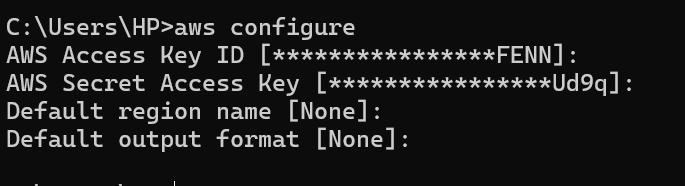
aws configure
- You will be prompted to enter:
AWS Access Key ID: (paste your key)
AWS Secret Access Key: (paste your secret)
Default region name: (for example,
us-east-1,us-west-2, or your preferred region)Default output format: (optional, e.g.,
json,table, ortext. You can just press Enter for defaultjson)
- Once done, AWS CLI saves this info in a configuration file (usually at
~/.aws/credentials).
Step 4: Verify Your Setup
- To check if everything is working, run a simple command:
aws s3 ls
- If you have access to S3 buckets, this will list them. Otherwise, it will either show an empty list or a permission error (which means your credentials work but you might not have S3 access).

Wow ! Congratulations now you did successfully configure AWS CLI. Now you can interact and use AWS services from the CLI.


Roulette’s allure is fascinating – the math, the risk! Seeing platforms like VIPPH prioritize a smooth user experience, like with the vipph app, is great. Secure logins & easy access are key for enjoying those spins! 🤔
Fantastic site Lots of helpful information here I am sending it to some friends ans additionally sharing in delicious And of course thanks for your effort