





Introduction
Managing cloud costs is one of the biggest challenges in AWS. In my experience, keeping non-production EC2 instances running 24/7 is a huge waste of budget. To solve this, I built a serverless automation using AWS Lambda and EventBridge. In this guide, I will show you the exact setup and the IAM policies that tripped me up during my first deployment.
Step 1: Create the Lambda Function
This function will start or stop your EC2 instances based on the time
Go to AWS Lambda
- Log in to the AWS Management Console.
- In the search bar, type Lambda and select Lambda from the list.
Create a New Lambda Function:
- Click Create function.
- Choose Author from scratch.
- Fill in the details:
- Function name: xxxxxxxxxx (or any name you like).
- Runtime: Python 3.12 (You can use other languages like Node.js, but we’ll go with Python for this guide).
- Role: Select create a new role with basic Lambda permissions.
- Click Create function.

Add Code to the Lambda Function
- In the function code editor, write code as given below
import boto3

def lambda_handler(event, context):

# Replace your AWS region
    ec2 = boto3.client('ec2', region_name='ap-south-1')

#Replace this placeholder ID with your actual EC2 Instance IDs that you want to target.
    instances = ['i-xxxxxxxxxxxxx']

    action = event.get('action')

    if action == 'start':
        #This line triggers the asynchronous start command to start the instances safely.
        ec2.start_instances(InstanceIds=instances)
        return 'Started instances: ' + str(instances)

    elif action == 'stop':
	#This line triggers the asynchronous stop command to shut down the instances safely.
        ec2.stop_instances(InstanceIds=instances)
        return 'Stopped instances: ' + str(instances)

    else:
        return 'Invalid action! Please specify "start" or "stop".'
Save and Deploy
- After adding the code, click Deploy to save and apply the changes.
Step 2: Give Lambda Permission to Start/Stop EC2 Instances
By default, Lambda doesn’t have permission to interact with EC2, so we need to give it the required permissions.
Go to AWS IAM (Identity and Access Management)
- In the search bar, type IAM and click on IAM
- In the left nav bar search role
Find the Lambda Role
- In the IAM dashboard, go to Roles.
- Find the role associated with the Lambda function you just created. It will be named something like KhulneBandHuneServer-role-XXXXXX.

Attach EC2 Full Access Policy
- Click on the role and go to the Permissions tab
- Click Add permissions and then select Attach policies
- Search for AmazonEC2FullAccess.
- Check the box next to it and click Attach policy.

Note: Make sure you don’t use * for Resource in production for security reasons. Also, double-check that you have added Logs:CreateLogStream permissions, otherwise your Lambda function will execute but you won’t see any execution history in CloudWatch.
Step 3: Create EventBridge Rules to Schedule Lambda Execution
Now, we will schedule this Lambda function to run automatically at specific times using EventBridge.
Rule 1: Start EC2 Instances at 10 AM
- Go to EventBridge (formerly CloudWatch Events)
- In the AWS Management Console, search for EventBridge and open it
- Create a Rule for Starting EC2 Instances:
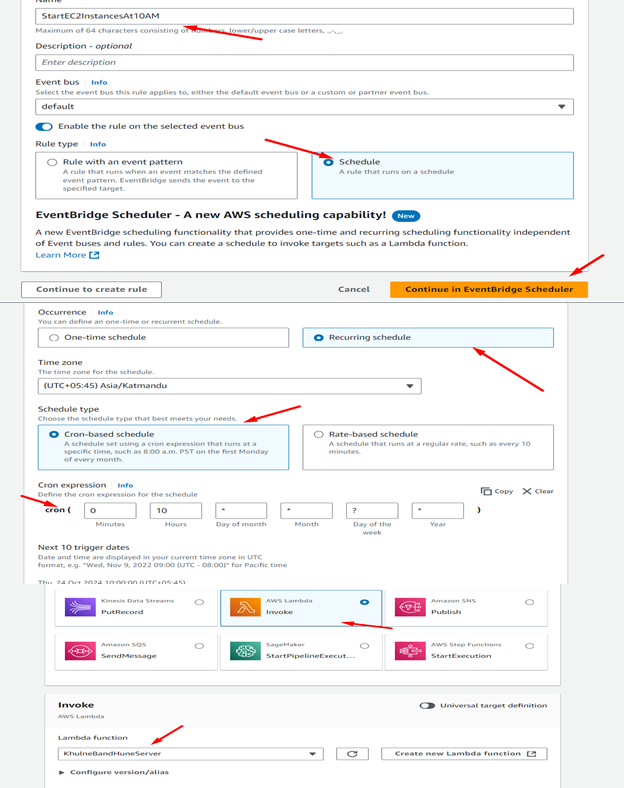
- Click create schedule rule.
- Name: StartEC2InstancesAt10AM.
- Schedule Pattern: Recurring schedule
- Schedule Type: Cron based
- Cron Expression: 0 10 * * ? *
(This is 4:00 AM UTC, which equals 10:00 AM IST because IST is UTC + 5:30.)
- Set Target as Lambda
- Under Targets, click Add target
- Select Lambda function
- In the Function dropdown, select StartStopEC2Instances.
- Click Create.
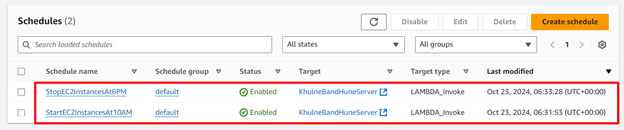
Rule 2: Stop EC2 Instances at 6 PM
- Create Another Rule for Stopping EC2 Instances:
- Create same as above for stop ec2 instances
Step 4: Test and Monitor
- Test Lambda Manually
- You can manually test the Lambda function to see if it correctly starts or stops the EC2 instances.
- Go to the Lambda function you created, and click Test.
- This will trigger the function, and you can check CloudWatch Logs to see if the instances started or stopped.
- Monitor CloudWatch Logs
- Go to CloudWatch and check the logs to verify that the function is running as expected.
- Each time the function is invoked, a log entry will be created, showing whether the instances were started or stopped.
Real-World Troubleshooting: What if it fails?
Text points
- Error: Task timed out after 3 seconds
- By default, AWS sets a newly created Lambda function’s timeout to just 3 seconds. If you are managing multiple instances, the execution might cross this limit and throw a timeout error. Make sure to increase the configuration timeout from 3 seconds to around 10-15 seconds in the settings.
- Error: IAM Role not authorized:
- Ensure your EventBridge rule has the permissions to trigger the Lambda function. You can verify this in the ‘Triggers’ tab of your Lambda console.
Now, your setup is complete, and your EC2 instances should automatically start at 10 AM and stop at 6 PM every day. You can always modify the timings or instances by editing the Lambda function or EventBridge rules.

