
Introduction
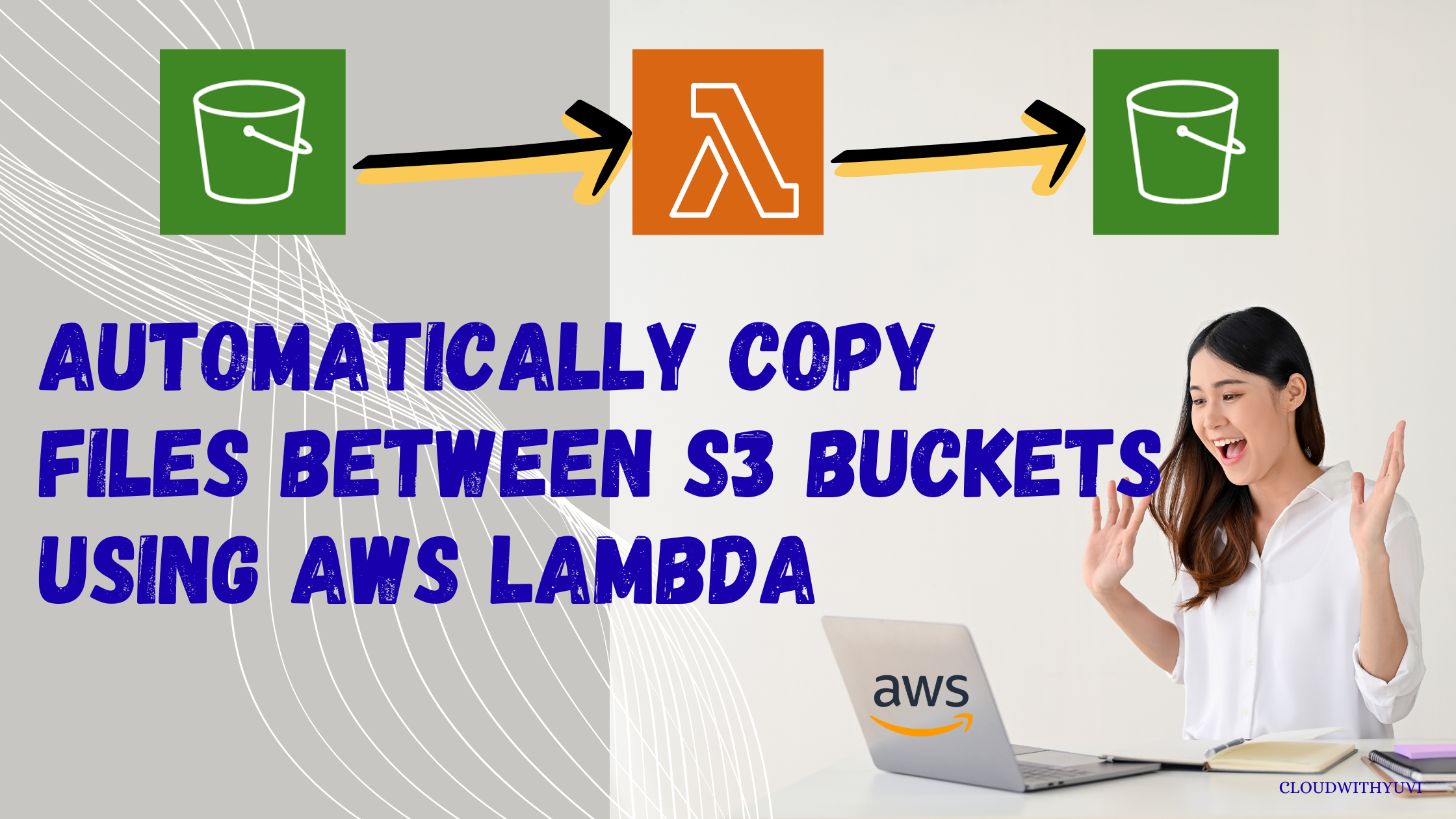
Have you ever wanted to automatically copy files from one S3 bucket to another without doing it manually every time?
Let’s say you upload an image or document to a primary bucket (source-bucket), and you want it to be instantly copied to a secondary bucket (destination-bucket) automatically.
Well, good news: you can achieve this easily using AWS Lambda and S3 event triggers no need for manual effort or complex tools.
Use Case
This setup is perfect when
- You want to separate raw uploads and processed files
- You’re creating a backup or mirror copy of uploaded files
- You need to automatically transfer uploads to another region or system
What You’ll Need
Before we dive into implementation, here’s what we will be using:
- AWS S3: To store files
- AWS Lambda: To run the logic automatically
- IAM Role: To give Lambda permission to access both buckets
Step-by-Step Implementation
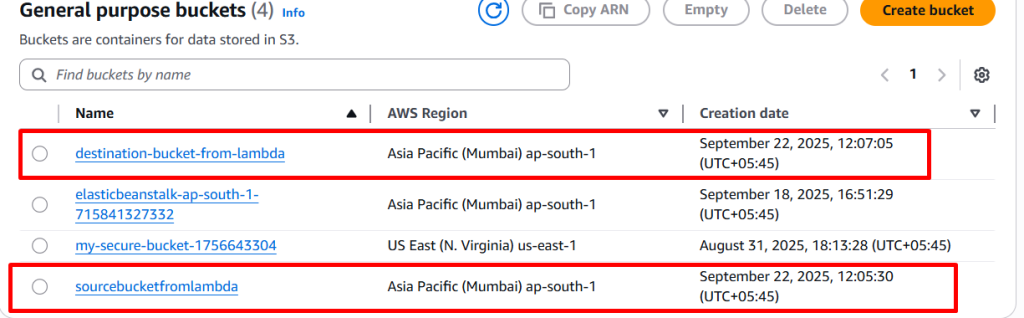
Step 1: Create Two S3 Buckets
You have to create two buckets:
- source-bucket-example: where the file will be uploaded
- destination-bucket-example: where the file will be copied
Create them from the AWS S3 console.
- Bucket Type: General Purpose
- Bucket Name : unique name
- Object Ownership : Select ACL’s disable (Recommended)
- Uncheck all public access and check on I acknowledge that the current settings might result in this bucket and the objects within becoming public.
- Then click on Create bucket
Step 2: Create IAM Role for Lambda
Lambda needs permission to read from the source bucket and write to the destination.
- Go to IAM > Roles > Create Role
- Trusted entity: AWS service
- Use case: Lambda
- Skip permission for now
- Click on create role (e.g.,
LambdaS3CopyRole)
Step 3: Create custom policy
- Go to policy tab and click on create policy
- click on JSON format and paste it
{
  "Version": "2012-10-17",
  "Statement": [
    {
      "Effect": "Allow",
      "Action": ["s3:GetObject"],
      "Resource": "arn:aws:s3:::source-bucket-example/*"
    },
    {
      "Effect": "Allow",
      "Action": ["s3:PutObject"],
      "Resource": "arn:aws:s3:::destination-bucket-example/*"
    }
  ]
}
- Now, click on next button and create
- Attach this policy to the role
Now, Lambda will be access both buckets.
Step 4: Create the Lambda Function
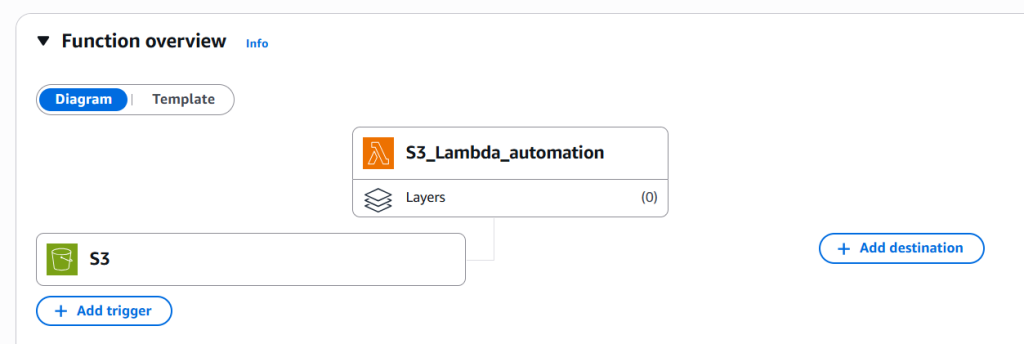
- Go to AWS Lambda > Create Function:
- Name:
CopyS3Files Runtime: Python 3.9 (or latest)- Click on Add trigger and select S3
- Select your source bucket
- Event type : Put
- check on Recursive invocation
- Click on Add button
- Name:
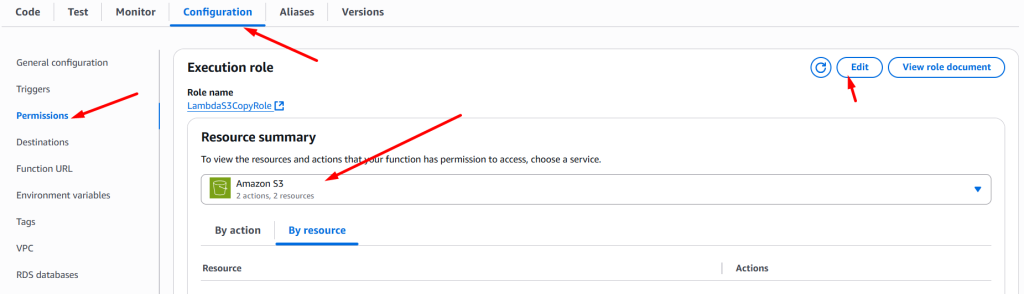
- Go to configuration tab select permissions: Choose existing role → select
LambdaS3CopyRole
- Now, go to code tab and paste it in your lambda IDE
import boto3
import urllib.parse

s3 = boto3.client('s3')

def lambda_handler(event, context):
    print("Event:", event)

    source_bucket = event['Records'][0]['s3']['bucket']['name']
    key = urllib.parse.unquote_plus(event['Records'][0]['s3']['object']['key'])

    destination_bucket = 'destination-bucket-example'

    try:
        copy_source = {'Bucket': source_bucket, 'Key': key}
        s3.copy_object(CopySource=copy_source, Bucket=destination_bucket, Key=key)
        print(f"Copied {key} from {source_bucket} to {destination_bucket}")

    except Exception as e:
        print(f"Error copying file: {e}")
        raise e
Note: Don’t forget to replace destination-bucket-example with your actual destination bucket name.
Step 5: Testing It Out
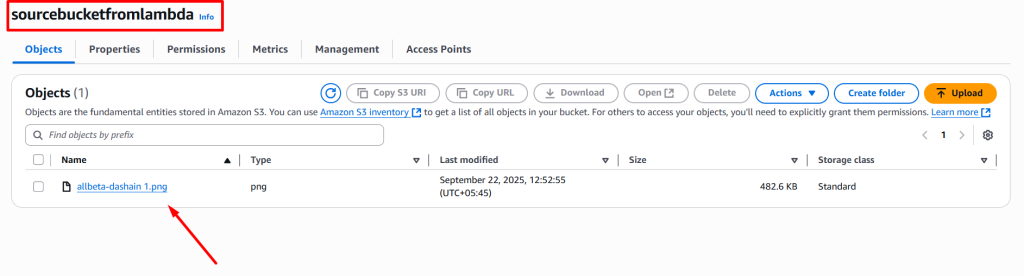
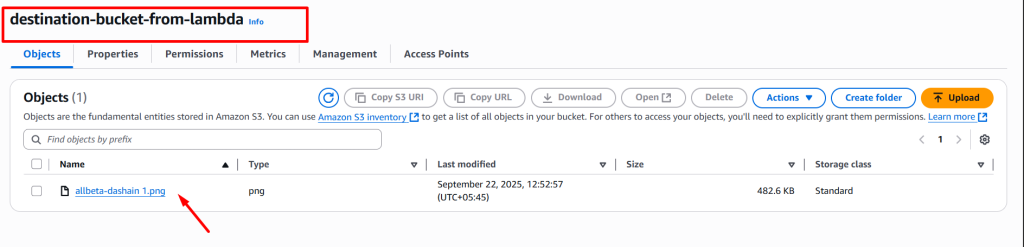
Try uploading an image or any file to your source bucket:
- Within seconds, the file should appear in your destination bucket — no manual work needed.
If not, check:
- Lambda function logs (via CloudWatch)
- IAM permissions
- Trigger configuration
Note: Don’t forget to delete resources to avoid extra cost.